

The Spreadsheet panel allows authors to display a read-only spreadsheet within a lesson. It is ideal for presenting tabular data and showing the results of calculations. Cells can contain text, numerical values, or formulae that automatically calculate results based on other cells.
Note: The Table, Table Question, Spreadsheet, and Spreadsheet Question panels share similar features. For more information on when to use each, see Table and Spreadsheet Panels in Lt.
To add a Spreadsheet panel, select Panels from the footer, then choose Basic from the Panels menu. Drag and drop the Spreadsheet panel onto your lesson page.

Editing your Spreadsheet panel
To customise your spreadsheet, select Edit. Editing options will appear below the panel.

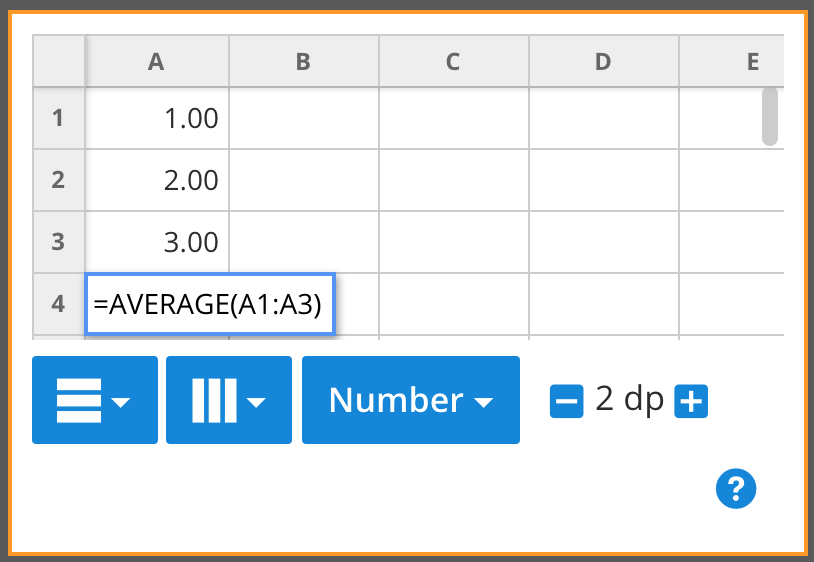
Use the row and column controls to add or delete rows and columns as needed. You can also adjust column width by dragging the edges of each column header.

You can control how data is displayed by selecting either Number or Scientific format, and adjusting the number of decimal places using the available controls.

To improve readability, you can set the first row or column as a fixed header using the header options menu.

Performing calculations
To add calculations, double-click a cell and enter a formula. You can also copy and paste functions directly into cells.
For a full list of supported functions, see Formulae for Spreadsheets and Tables in Lt.