

How you access Lt depends on how your institution has configured your course. You may access Lt by accepting a course invitation, launching an Lt lesson from your learning management system (LMS), or signing in with your institutional credentials.
Use the access method provided by your institution
You should not create a separate Lt account unless you are prompted to do so as part of your access method. If you access Lt from your LMS, continue using the Lt lesson links in your LMS.
Access Lt from a course invitation
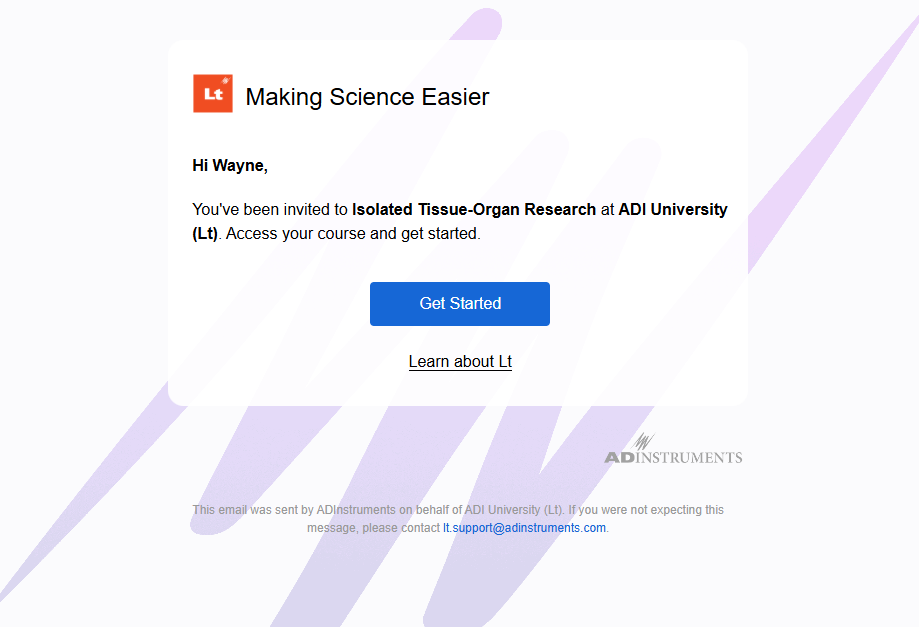
If your institution invites you directly to an Lt course, you will receive an email with a Get started button.
Open your invitation email
Your invitation identifies the institution and course you have been invited to. Select Get started to continue.
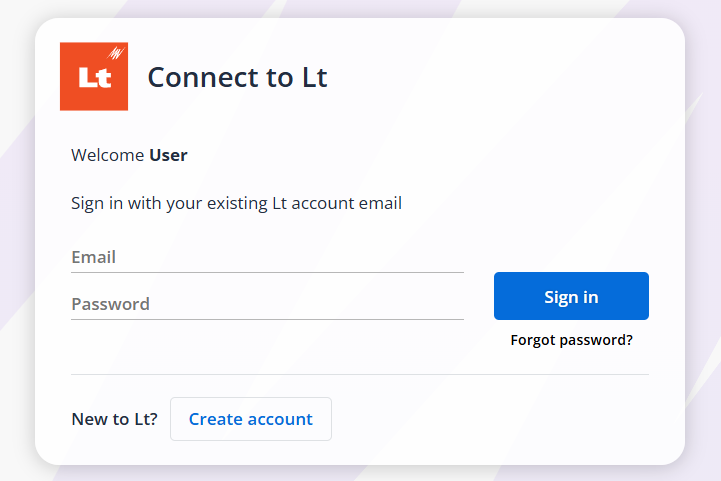
Sign in or create an account
Lt displays your name, email address, institution, and course. Choose Sign in if you already have an Lt account, or Create account to create a password for the email address that received the invitation.

Accept the Terms of Service
Review and accept the Lt Terms of Service when prompted.
Access your course
After accepting the Terms of Service, you are taken to your Lt student dashboard where you can access your course.
Access Lt from your LMS
If your course uses an LMS integration, you should normally access Lt by launching an Lt lesson from within your LMS.
Continue accessing Lt through your LMS
You do not need an Lt invitation email. Launching an Lt lesson from your LMS automatically enrols you in the associated Lt course, connects your Lt account with your LMS account, and allows grades to be copied back to the LMS gradebook.
Launch an Lt lesson
Select the Lt lesson link provided in your LMS course. The first time you launch a lesson, Lt automatically enrols you in the Lt course associated with that lesson.
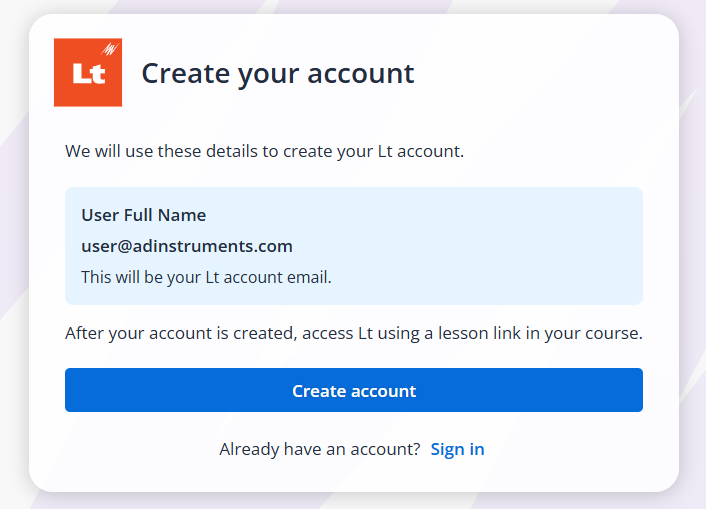
Create an External sign in account
Before creating your account, Lt displays the name and email address supplied by your LMS. These details cannot be edited on this page.
Select Create account to create the account, link it to your LMS account, and continue to the lesson.
Important
An External sign in account can only access Lt through an Lt lesson link in your LMS. Continue to launch Lt from your LMS rather than trying to sign in to Lt directly.
If you have accessed Lt before
You may have used Lt previously but still be asked to connect or create an account. This can occur if the primary email address supplied by your LMS does not match the email address associated with your existing Lt account.
Before creating another account, check the email address displayed on the Create account page.
- Return to your LMS without creating a new Lt account.
- If possible, change your primary LMS email address to match the email address associated with your existing Lt account.
- Launch the Lt lesson from your LMS again.
If the email addresses match, Lt should automatically link your LMS account to your existing Lt account. If you cannot change your LMS email address, do not know which email address is associated with your Lt account, or continue to experience problems, contact ADInstruments Support.
Access Lt using institutional sign-in
If your institution uses single sign-on (SSO), you will be provided with a link or app that takes you to your institution's sign-in page.
Open the Lt link or app
Use the Lt link or app provided by your institution. This may be available from your LMS or another institutional portal.
Sign in with your institutional credentials
You are redirected to your institution's sign-in page. Enter the credentials you normally use to access your institution's services.
Accept the Terms of Service
The first time you access Lt, review and accept the Lt Terms of Service when prompted.
Access your courses
After signing in, Lt opens and you can access the courses you have been added to.
Not sure how you should access Lt?
Use the access method provided by your educator or institution:
- Received an Lt invitation email? Accept the invitation.
- Have Lt lesson links in your LMS? Launch Lt from those links.
- Been given an institutional Lt link or app? Use your institutional credentials to sign in.
If you are still unable to access Lt, contact your educator, institution, or ADInstruments Support.