

Lt provides a simple way to import and export lessons or entire modules, allowing you to efficiently transfer content between courses or instances. Follow the steps below to export and import lessons or modules in Lt.
Importing a Lesson or Module
To import a lesson or module:
- Navigate to the Lessons or Modules card in your course.
- Open the Overflow Menu. (three vertical dots)
- Select Import.
- Choose the
.kurafile you want to upload and follow the prompts to complete the process.
Image
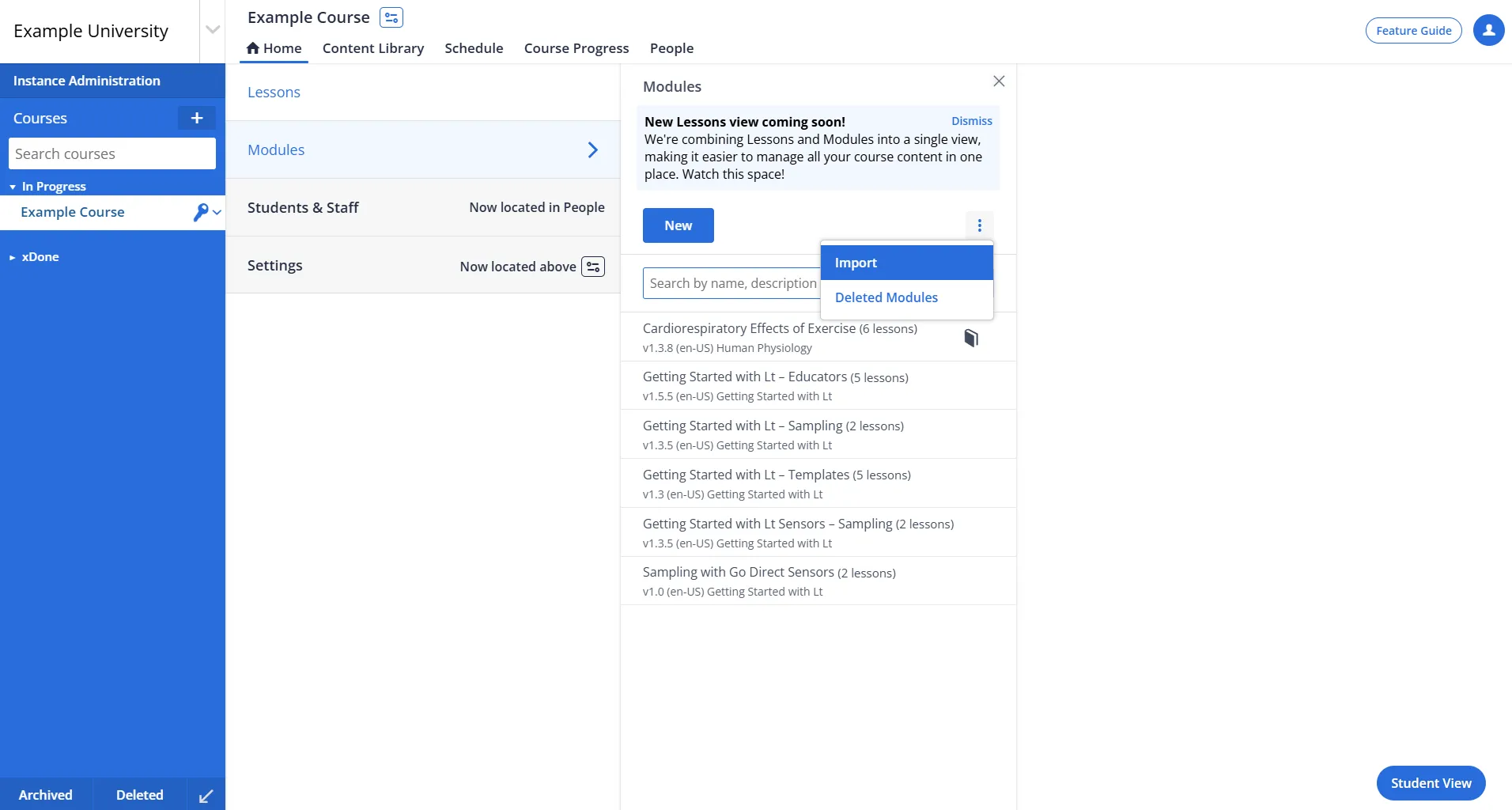
Fig. 2: Import Function in the Gear Menu
Exporting a Lesson or Module
To export an individual lesson or entire module:
- Navigate to the Lessons or Modules card in your course.
- Select the lesson or module you want to export.
- Open the Overflow Menu (three vertical dots) for the selected lesson or module.
- Click Export. The content will be downloaded as a
.kurafile.
Image
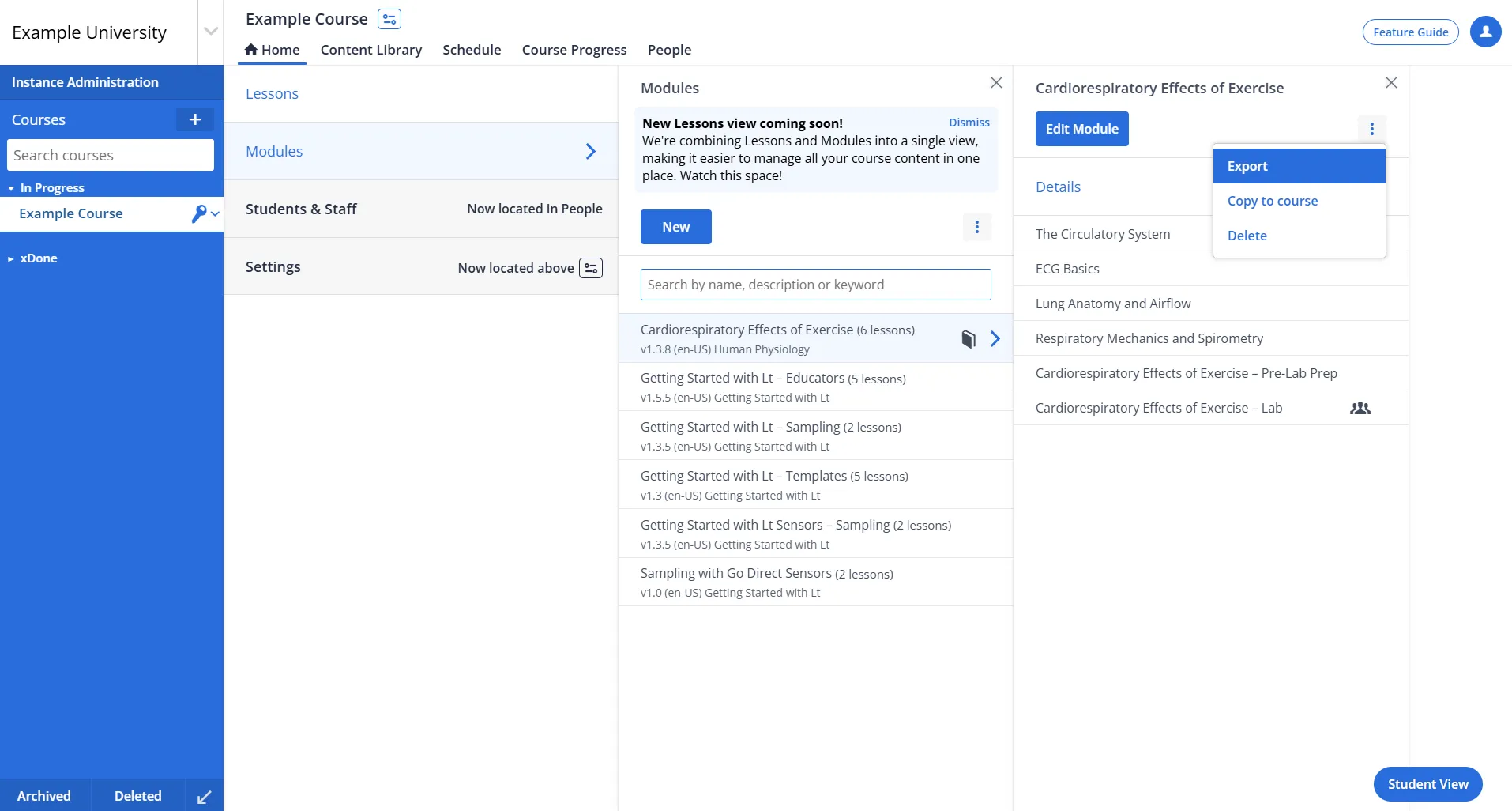
Fig. 1: Export Function in the Gear Menu
Additional Notes
- Exported
.kurafiles include all associated content, such as lesson text, images, and configuration settings. - Ensure that the lesson or module being imported does not conflict with existing content in the destination course or module.
Need Help?
For further assistance with exporting or importing lessons and modules, please contact ADInstruments Technical Support.