

When you open and close a Lesson as an Administrator in Lt, a new Revision is automatically saved. This ensures that you can always track and manage changes made over time.
Accessing Lesson Revisions
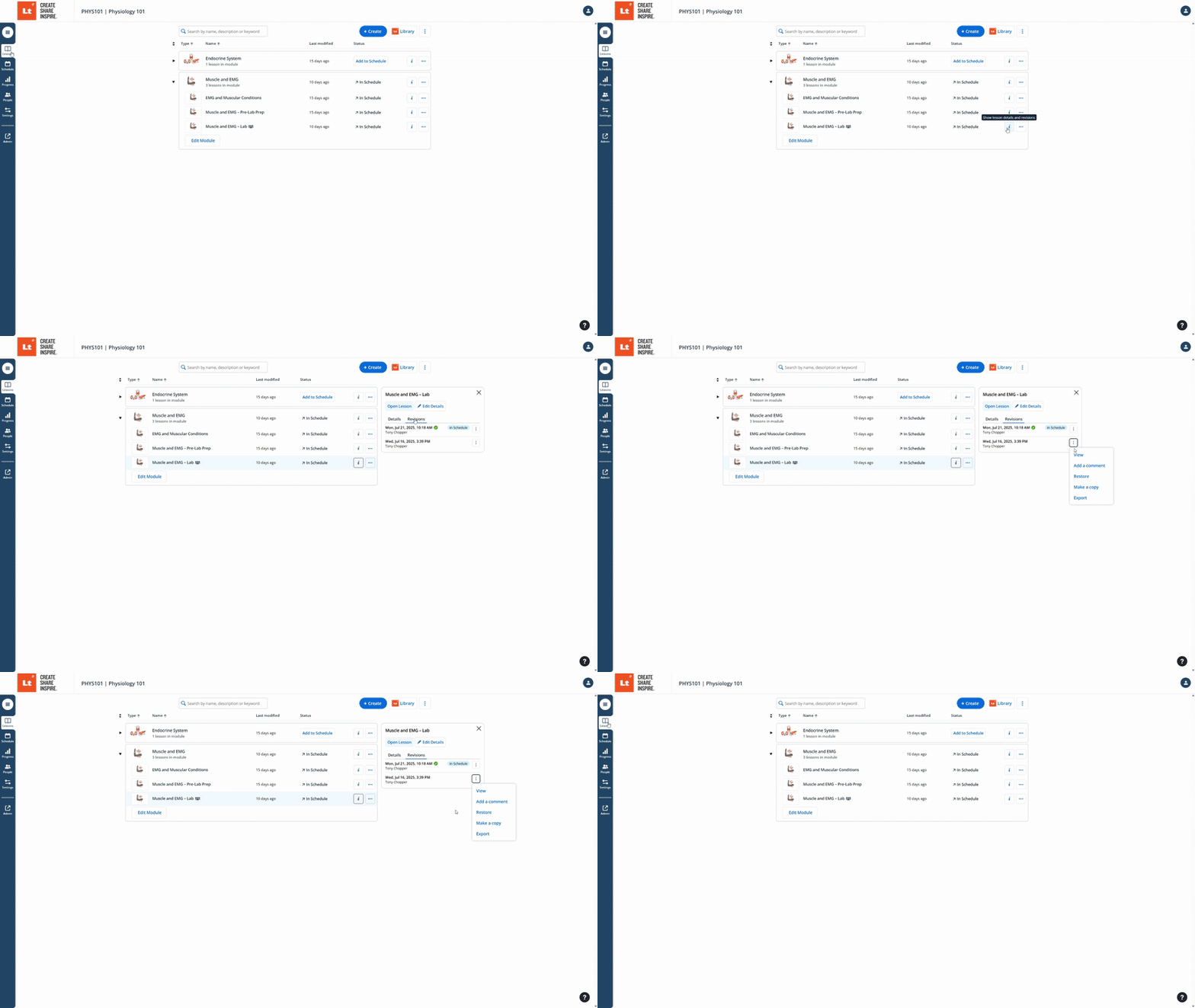
To view past versions of a Lesson:
Go to the Lessons Tab.
Click the info icon to Show lesson details and revisions.
Select the Revisions tab.
This will open a list of all saved revisions associated with that Lesson.
Understanding the Revisions List
In the Revisions view, you can:
See the edit history — including the date and time of each revision and the name of the user who made the changes.
View a specific revision to examine its contents without making any changes.
Add comment to describe the revision.
Restore a previous version, which will then become the new “current” version of the Lesson.
Copy a revision to use its content as a base for creating a new Lesson.
Best Practices
Use Revisions to recover accidentally deleted content or revert to a previously successful version.
Review revision history before publishing to ensure all recent changes are intended.