

Text panels can be added to any lesson by selecting Panels from the footer, then Basic from the Panels menu, as shown below:
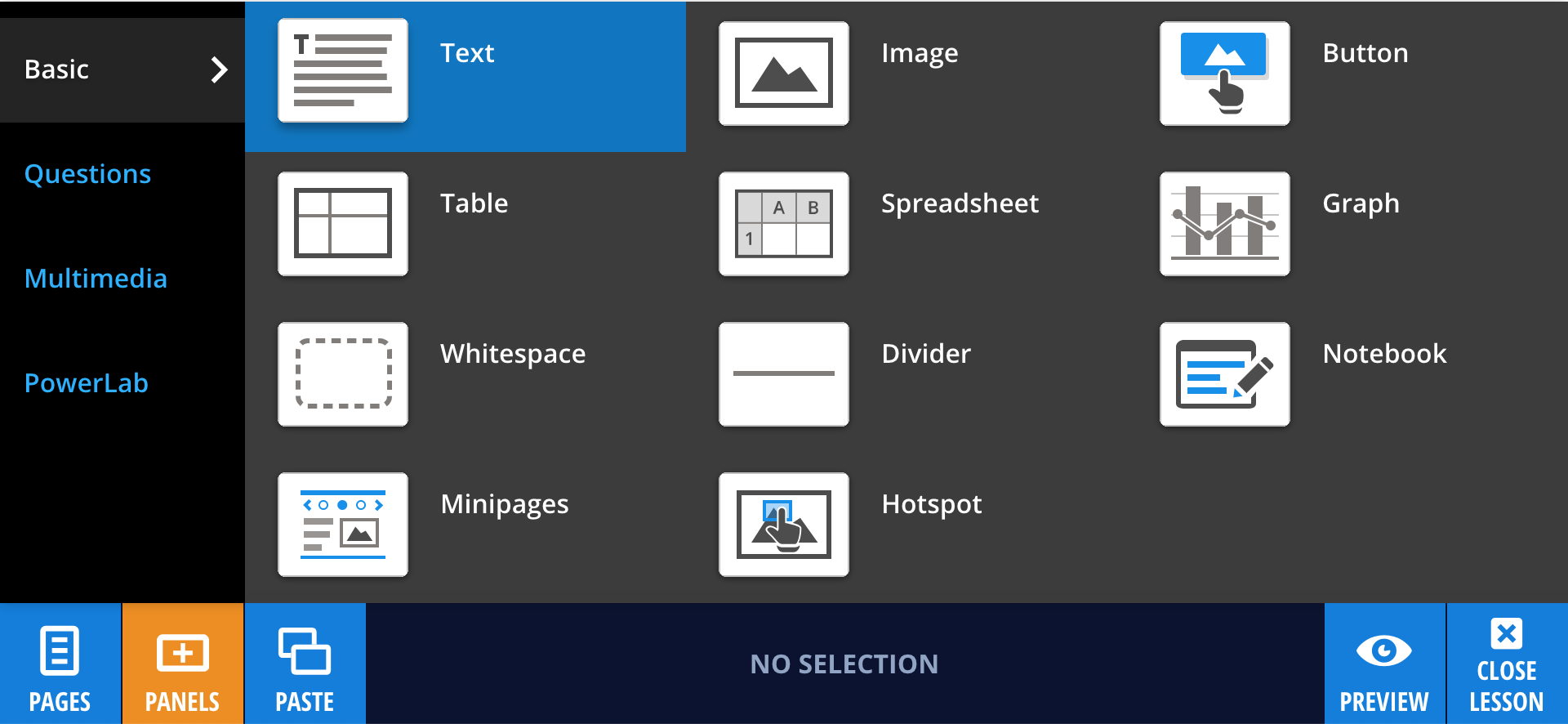
Drag and drop the Text panel to the desired location on the lesson page. You can copy text from external documents and paste it into a Text panel, with basic formatting preserved.
Editing your Text panel
To customise and format the text, select Edit. This opens the text formatting options shown below:

These options allow you to:
- Bold text
- Italicise text
- Apply subscript
- Apply superscript
- Insert en dashes
- Apply quote styling
- Create numbered or bulleted lists
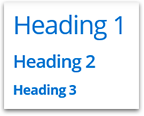
- Apply three different heading styles to structure content
- Link text to a URL
- Link text to a popup
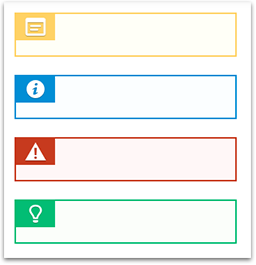
You can also change the style of the Text panel by selecting Style from the panel properties in the footer. Available styles include:
- Note
- Background
- Caution
- Tip
When you are finished editing, select Done.