

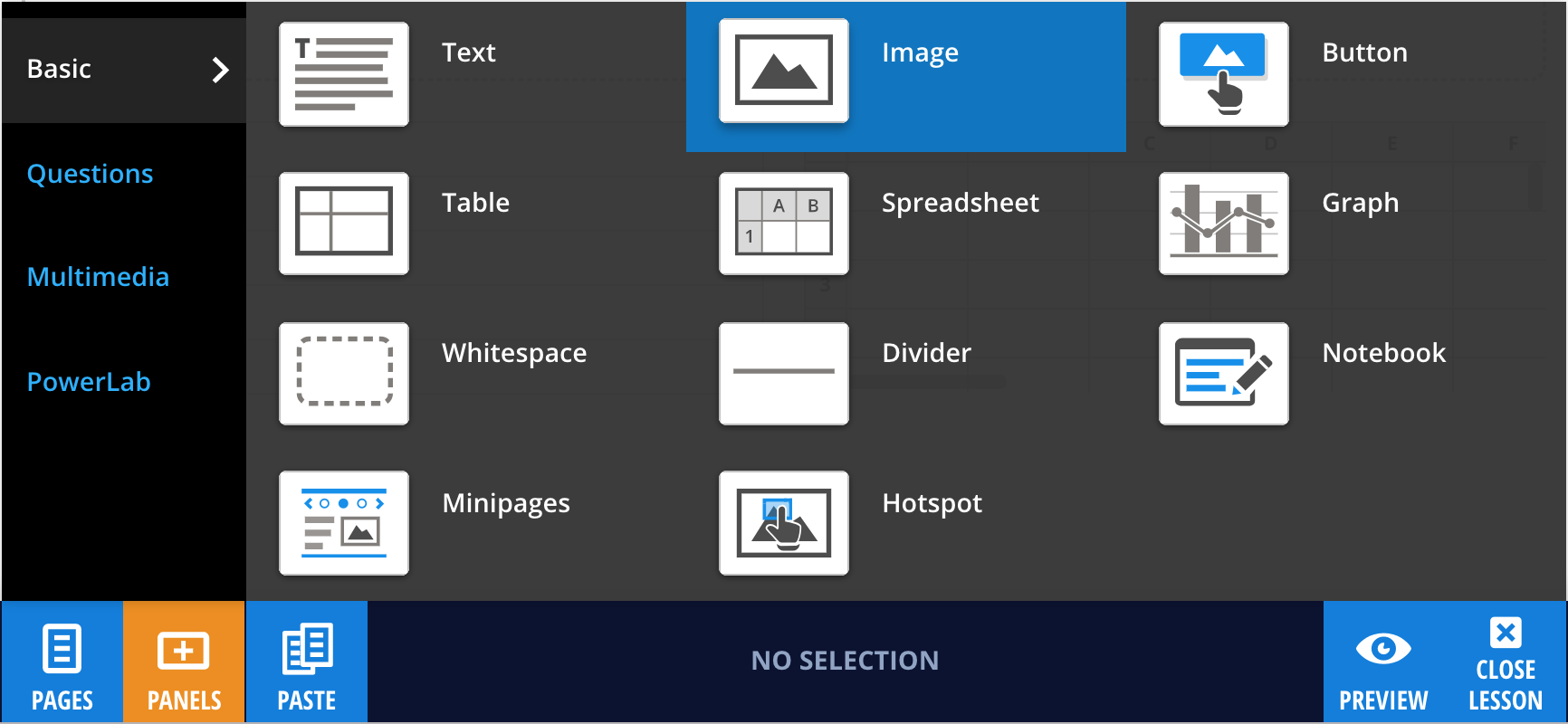
To add an image, select Panels from the footer, then choose Basic from the Panels menu. Drag and drop the Image panel onto your lesson page.
Adding images to your panel
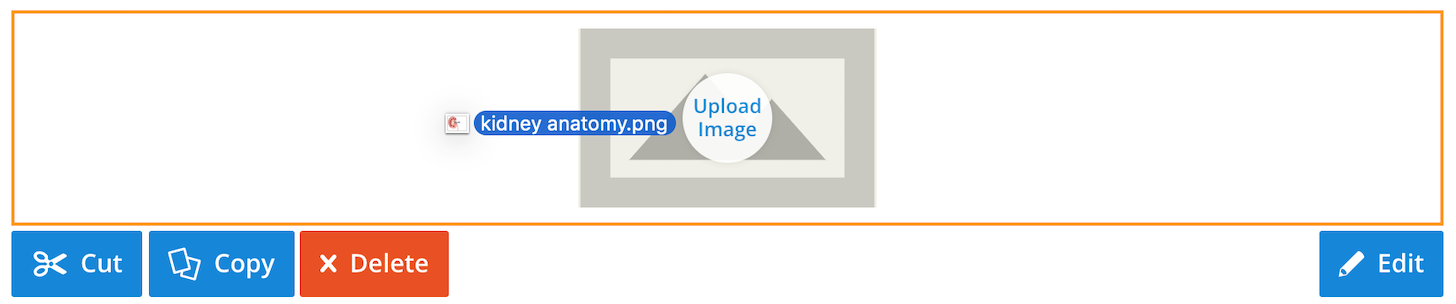
You can upload an image by dragging and dropping it directly onto the panel, or by selecting Edit, then Add Image from the panel properties in the footer.
Lt supports JPEG, PNG, GIF, and SVG images (UTF-8 encoded). The maximum file size is 5 MB, and maximum dimensions are 10,000 × 10,000 pixels.
Upload speed will depend on your internet connection.
While in Edit mode, you can flip, rotate, crop, download, and add copyright information using the panel properties menu in the footer.

To replace an image, drag a new file onto the panel or select Change Image from the panel properties in the footer.