

The grading function in Lt is constantly being improved. While this guide is accurate at the time of writing, some details may change as new updates are released.
Managing Grading in Lt
In Lt, non-assessable questions (those not set as "Graded" or "Graded + Instant") can now be viewed in the grading interface. This enhancement ensures that all student responses are accessible for review.
Granting Extensions
If a student requires additional time to complete an assessment, you can grant an extension. For detailed instructions, refer to this article on granting extensions in Lt.
Exporting Grades
Grades can be exported as CSV files, making it easy to integrate with your institution's grading system. Follow these steps to export grades:
- Navigate to Course Progress for the relevant course.
- Click on the Overflow Menu (three vertical dots) in the top right corner.
- Select Export Grading. A CSV file containing the grades for committed lessons will be downloaded to your device.
Note: You can only export grades for lessons that have been committed by students.
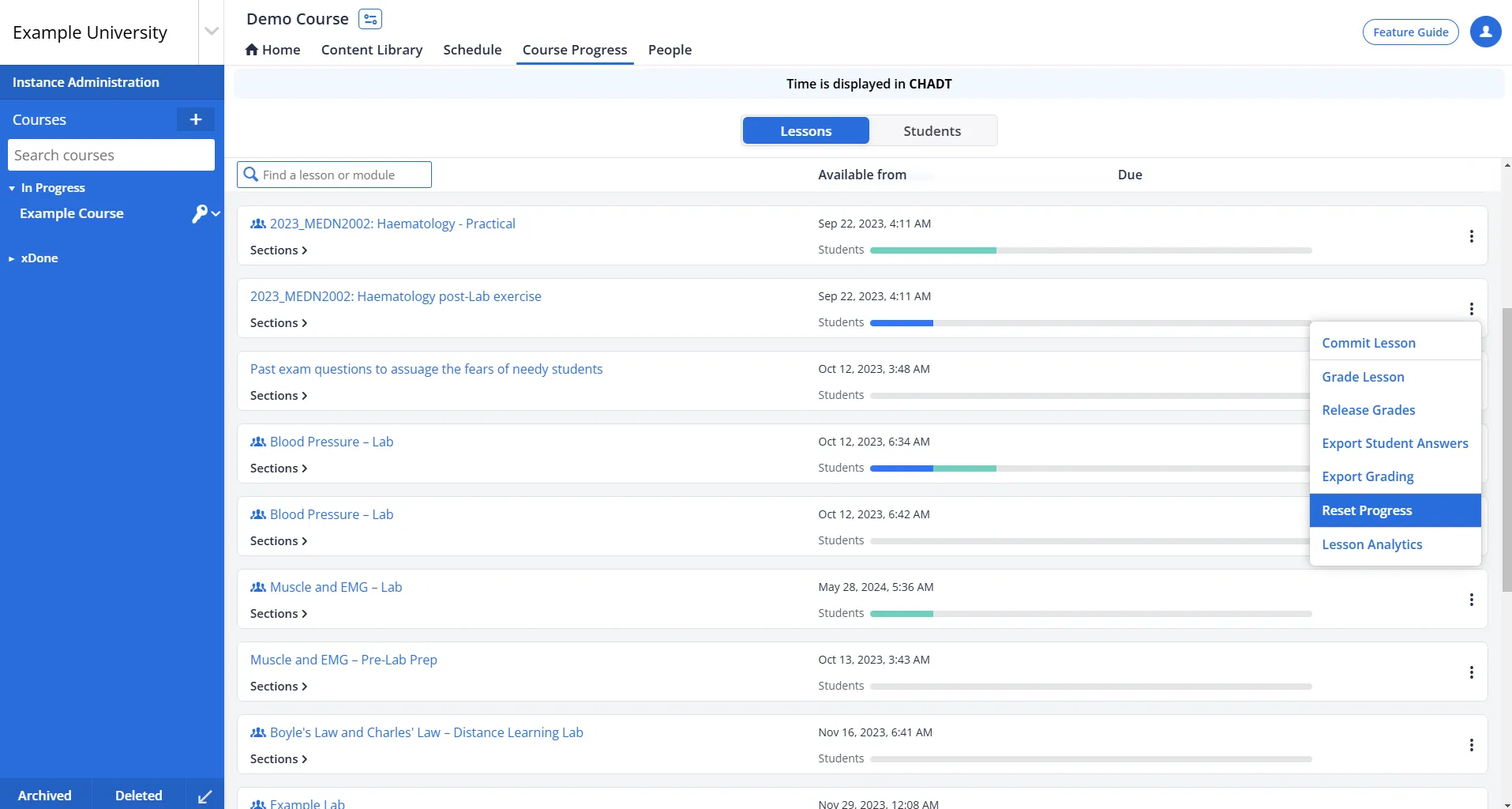
Fig. 1: Export Grading Option in the Overflow Menu
Additional Notes
- Ensure that all lessons intended for grading are committed by students before exporting grades.
- Keep in mind that the CSV file format can be easily imported into most grading systems for further analysis or record-keeping.
Need Help?
If you experience issues or have further questions about grading in Lt, contact ADInstruments Technical Support.