

This guide explains how to accept your Lt course invitation, create or sign in to your Lt account, and activate access to your course using a course access code or online payment.
1. Open your Lt invitation
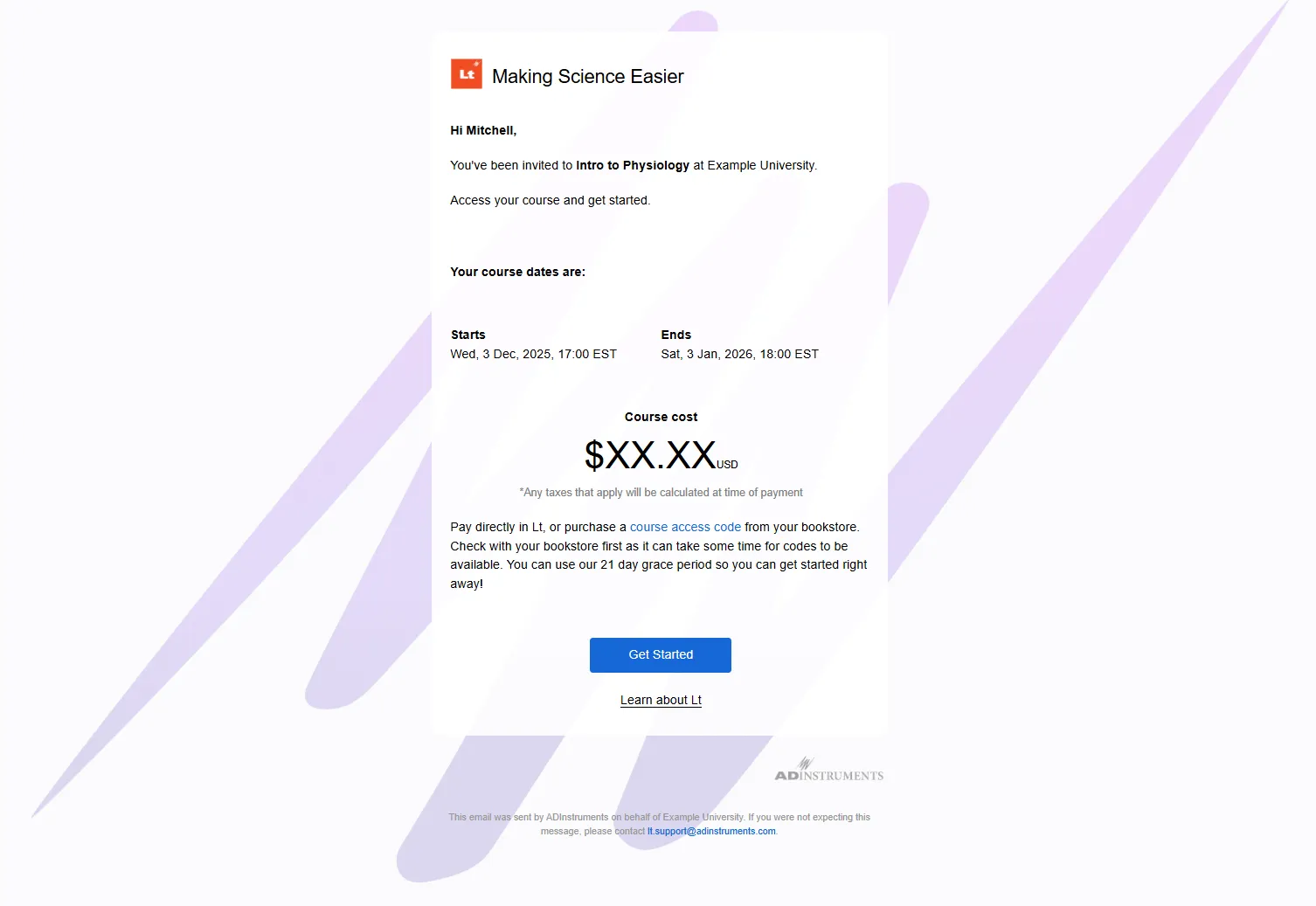
Wait until you receive your Lt course invitation before trying to access the course.
The invitation is sent to the email address provided by your institution and has the subject line Here's your Student Invitation to Lt!
Can't find the invitation?
- Check your spam or junk folder.
- Ask your instructor to confirm that an Lt invitation has been sent to you.
Open the invitation and select Get started.
2. Sign in or create your account
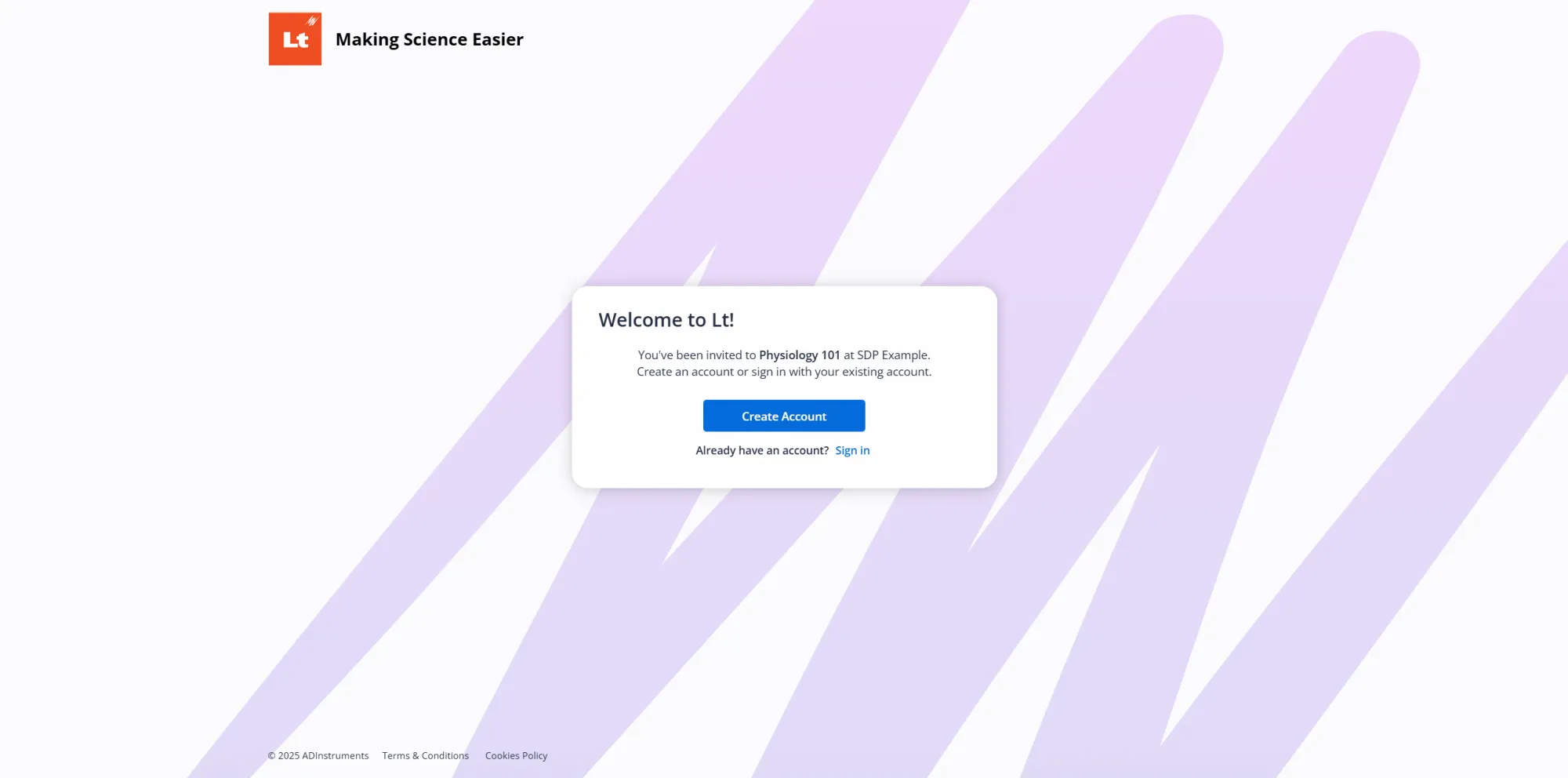
After selecting Get started, Lt shows your invitation details and asks you to sign in or create an account.
New to Lt?
Select Create account and create a password for the email address shown on your invitation.
Already have an Lt account?
Select Sign in and enter the email address and password for your existing Lt account.
Returning to Lt later
Once your Lt account has been created, you can sign in directly using your email address and password.
3. Choose how to access your course
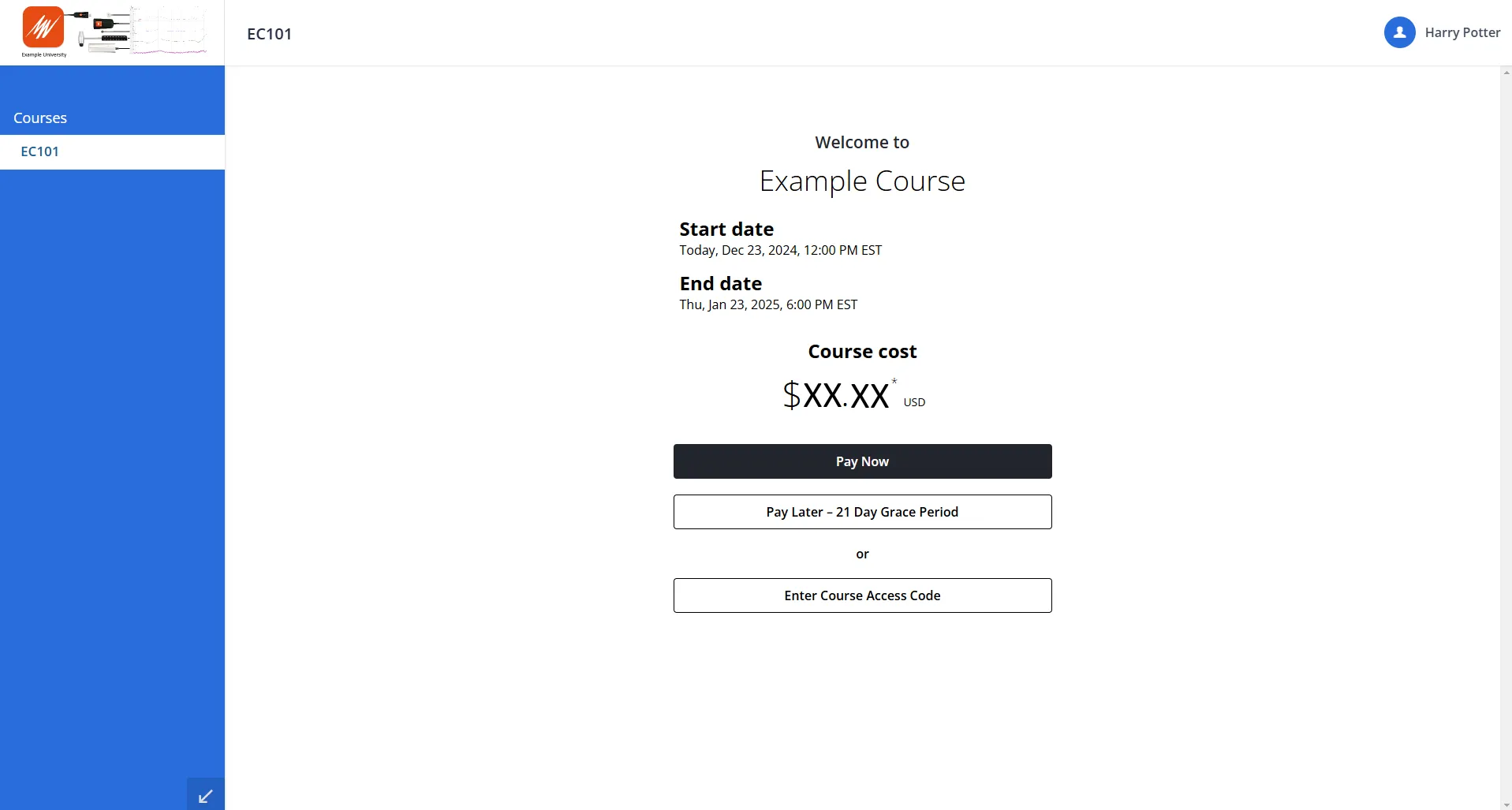
Before entering your course, Lt asks you to choose how you want to activate access.
4. Activate your course later
If you choose the 21-day unlicensed access period, you can continue using your course before purchasing a license.
Keep track of your remaining access
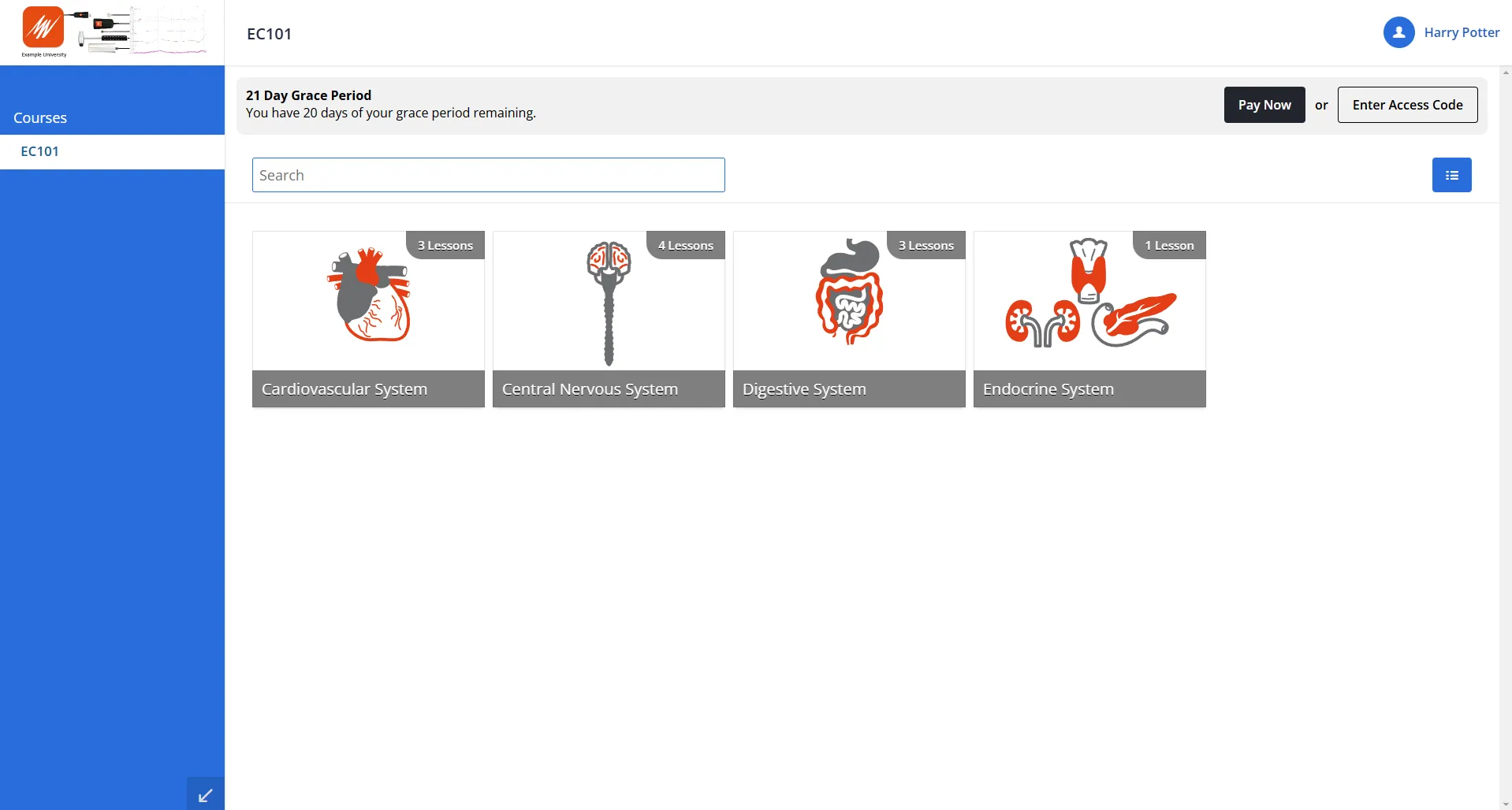
A banner at the top of Lt shows how many days remain in your unlicensed access period. You can select Pay Now or Enter Access Code from this banner at any time.
When the 21-day access period ends
When the unlicensed access period expires, you must purchase course access or enter a valid course access code before you can continue using your Lt course.
Troubleshooting
Still need help?
If you are unable to access your Lt course or activate your course access after completing the steps above, contact ADInstruments Technical Support.