

The Fill in the Blanks panel encourages students to recall information by completing missing words or phrases within a sentence or paragraph. It is useful for testing understanding and reinforcing key concepts.
You can create blanks for single words or longer text, and provide multiple correct answers for each blank.
To add a Fill in the Blanks panel, select Panels from the footer, then choose Questions from the Panels menu. Drag and drop the Fill in the Blanks panel onto your lesson page.
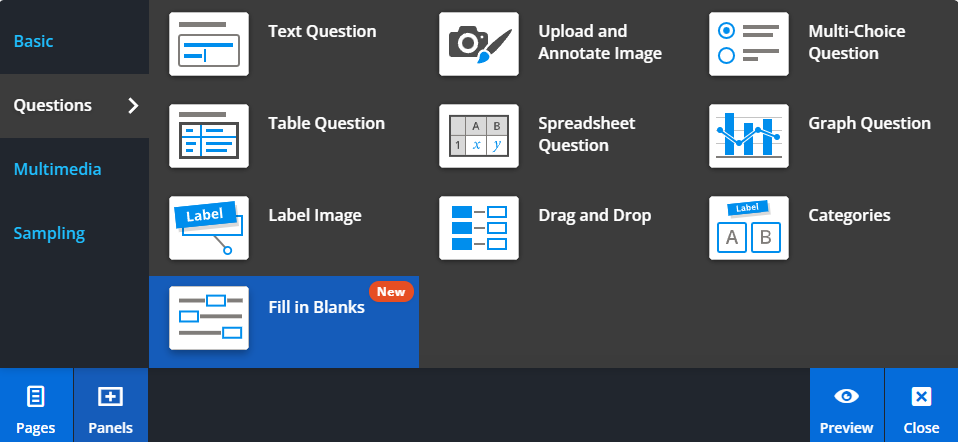
Editing your Fill in the Blanks panel
To enter your question, select the panel or choose Edit, then type or paste your sentence or paragraph into the text field.
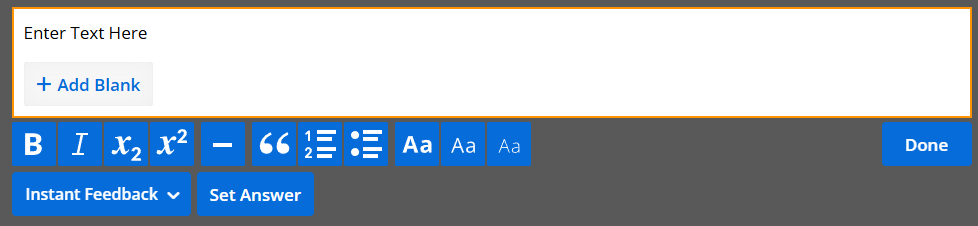
Adding blanks
You can add blanks in two ways. Select Add Blank while typing your sentence, or highlight a word or phrase and select Set as Answer.
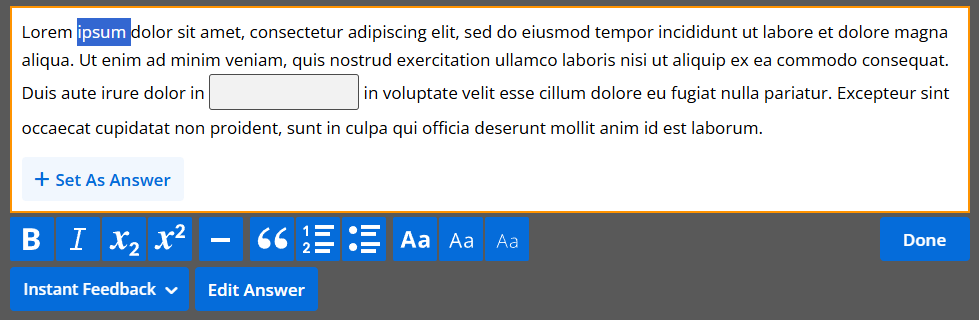
Adding and editing answers
To add alternative answers for a blank, select Edit Answer, then choose the blank you want to edit.
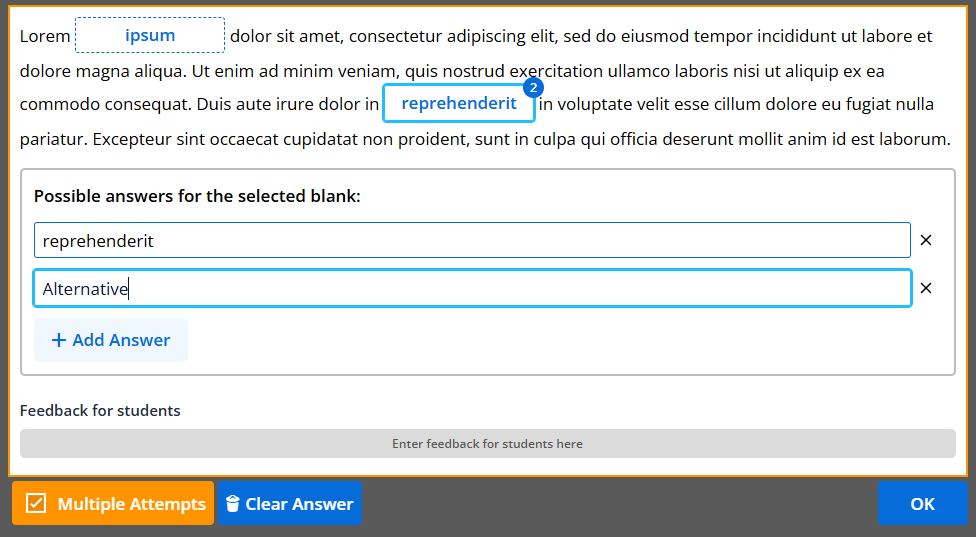
Select Add Answer and enter additional acceptable responses.
When you are finished, select OK, then Done to save your changes.
Students can submit their responses using the Check Answer button and receive feedback based on their answers.