

The Video panel allows you to add video content to your lesson. It is a simple and effective way to present information and enhance student engagement.
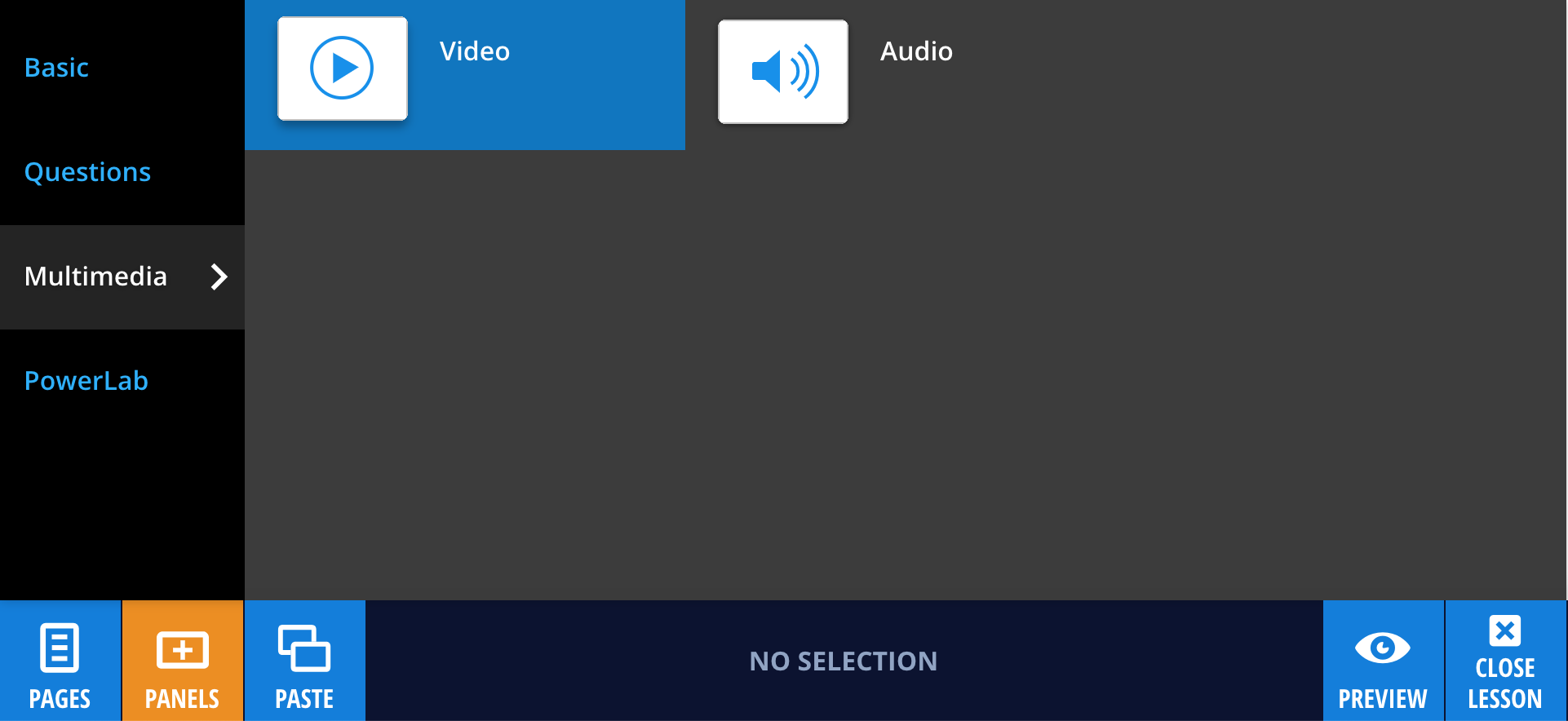
To add a Video panel, select Panels from the footer, then choose Multimedia from the Panels menu. Drag and drop the Video panel onto your lesson page.
Adding a video
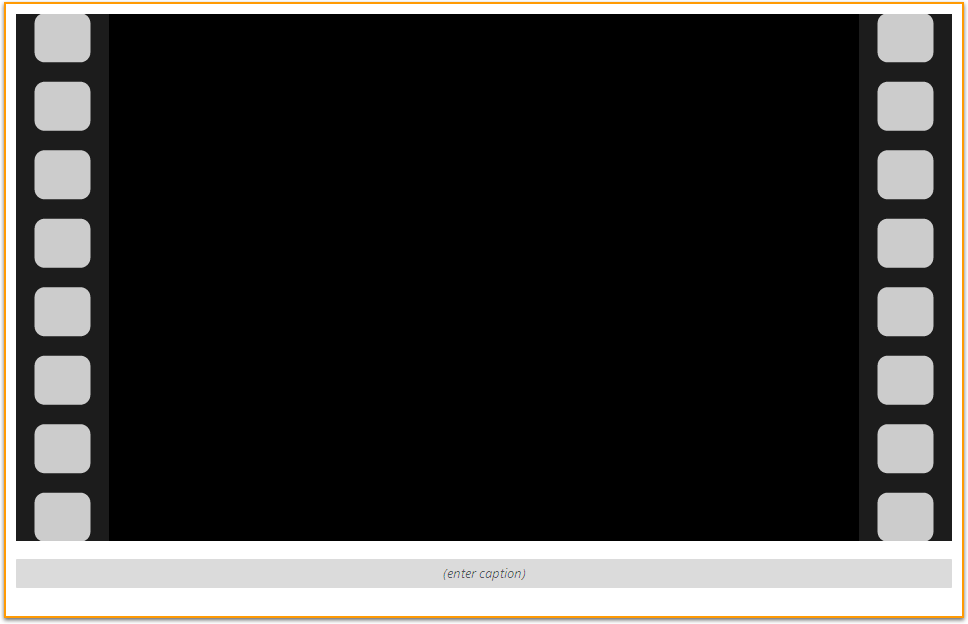
You can add a video by dragging and dropping it onto the panel, or by selecting Edit, then Add Video from the panel properties in the footer.
Videos can be embedded from YouTube or uploaded directly to Lt. Uploaded videos must be in a supported format (H.264 with streaming support). For more information, see producing videos for Lt.
Adding a poster image
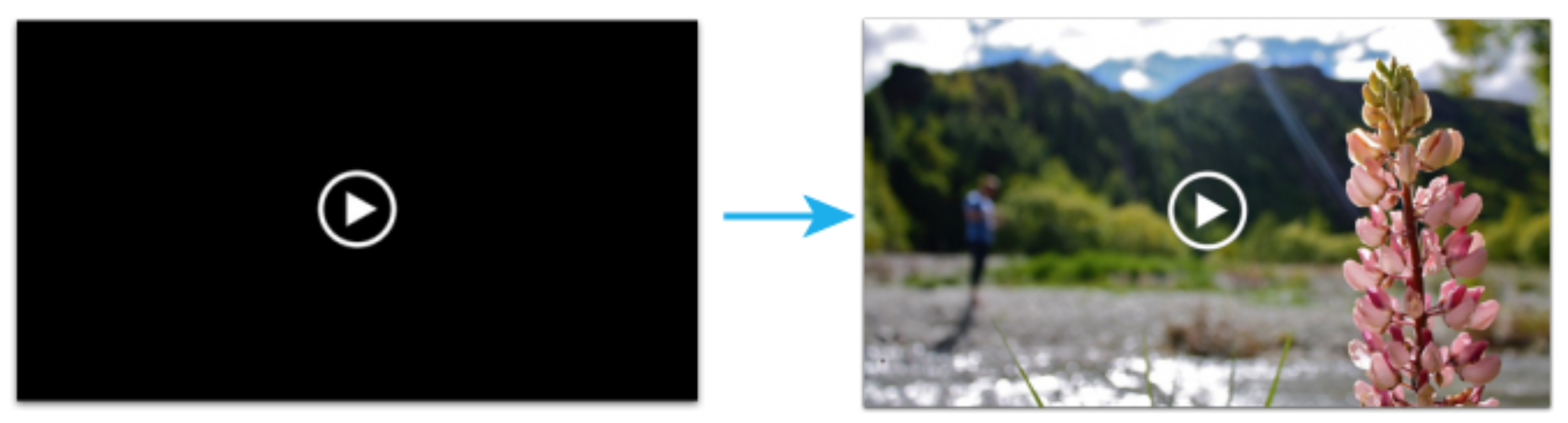
A poster image is displayed before the video is played. To add one, drag and drop an image onto the panel, or select Add Poster.
To update the poster image, select Change Poster. You can also add a caption or enable looping if required.
For more information, see adding a poster image and adding closed captions.