

The Categories panel allows students to sort labels into different groups. It is useful for classification tasks and reinforcing understanding of relationships between concepts.
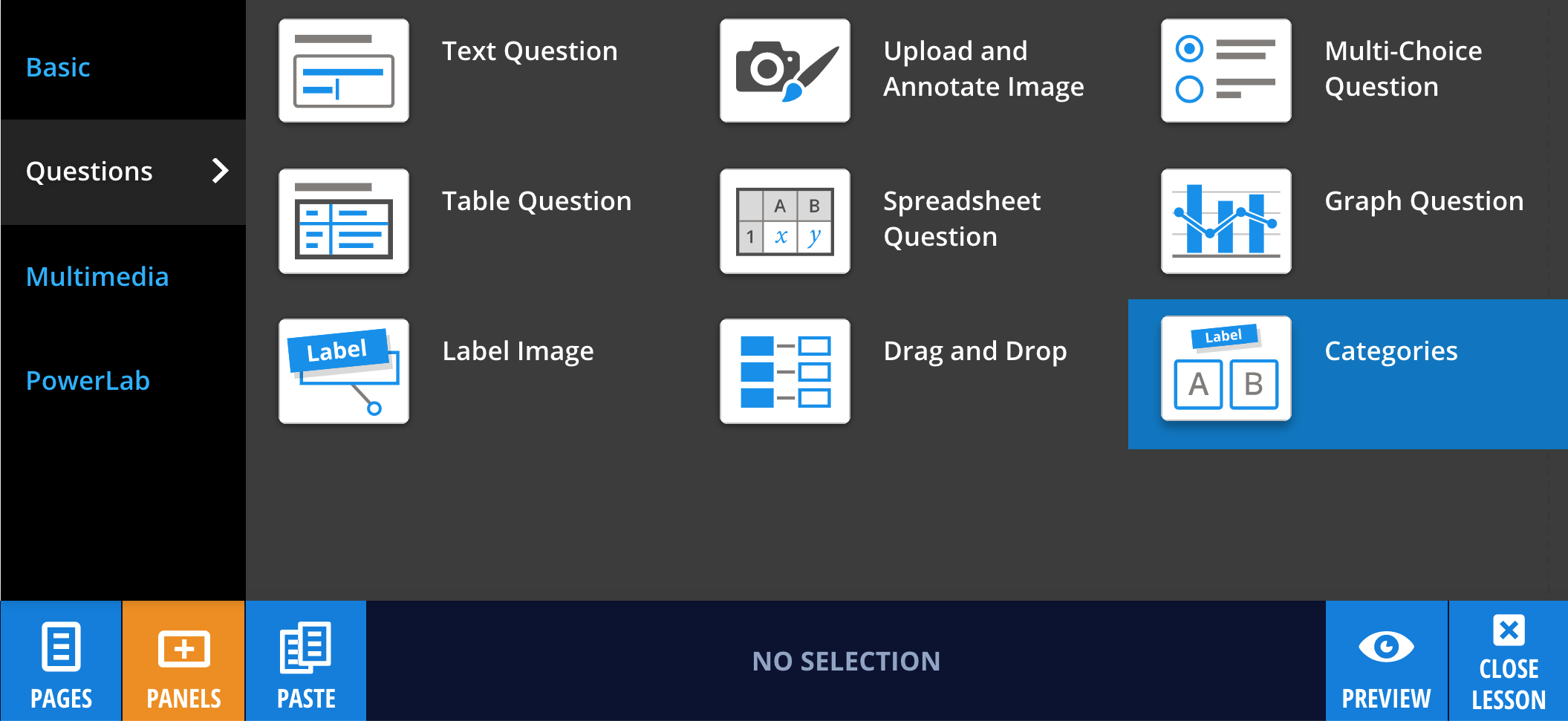
To add a Categories panel, select Panels from the footer, then choose Questions from the Panels menu. Drag and drop the Categories panel onto your lesson page.
Editing your Categories panel
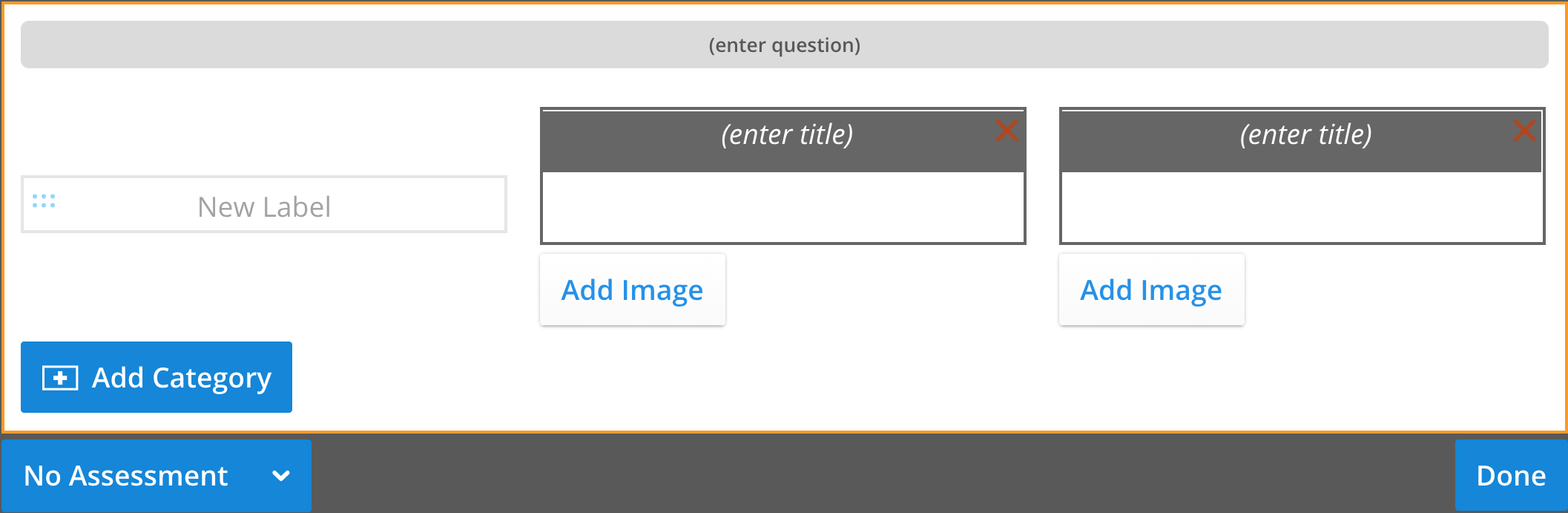
To enter your question, select the panel or choose Edit, then type your question into the text field.
In Edit mode, add category titles by selecting the title field at the top of each category. To add more categories, select Add Category.
Adding images to categories
You can add a background image to each category by selecting Add Image beneath the category.
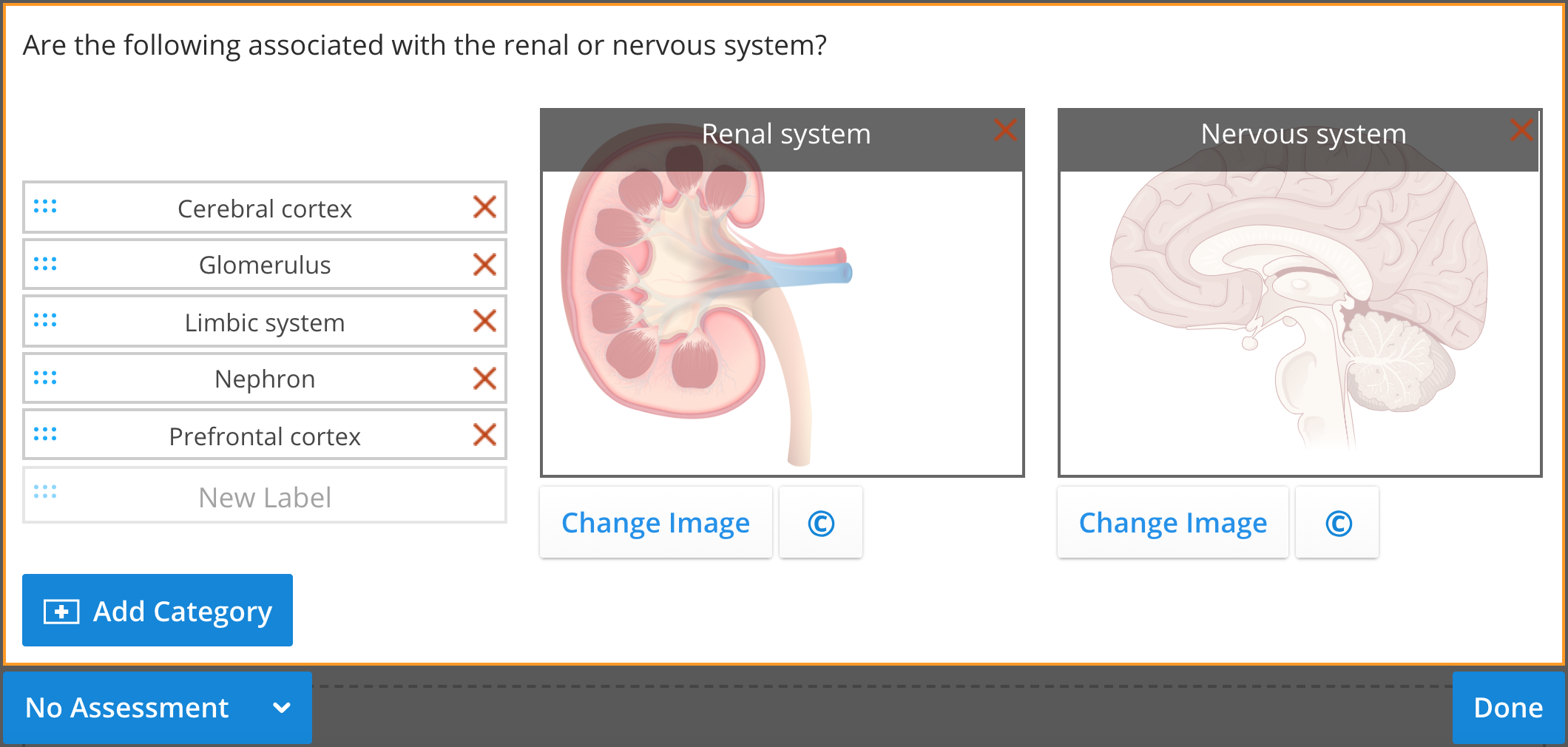
To replace the image, select Change Image. To download the image, use the download button  . You can also add copyright information using the copyright button
  .
.
Adding labels
To create labels, select New Label or press Enter. Labels can be dragged into categories during editing and by students when completing the activity.
Adding an answer
To set the correct answer, select an assessment type, then choose Set Answer.
Drag each label into its correct category, then select OK to save your answer.
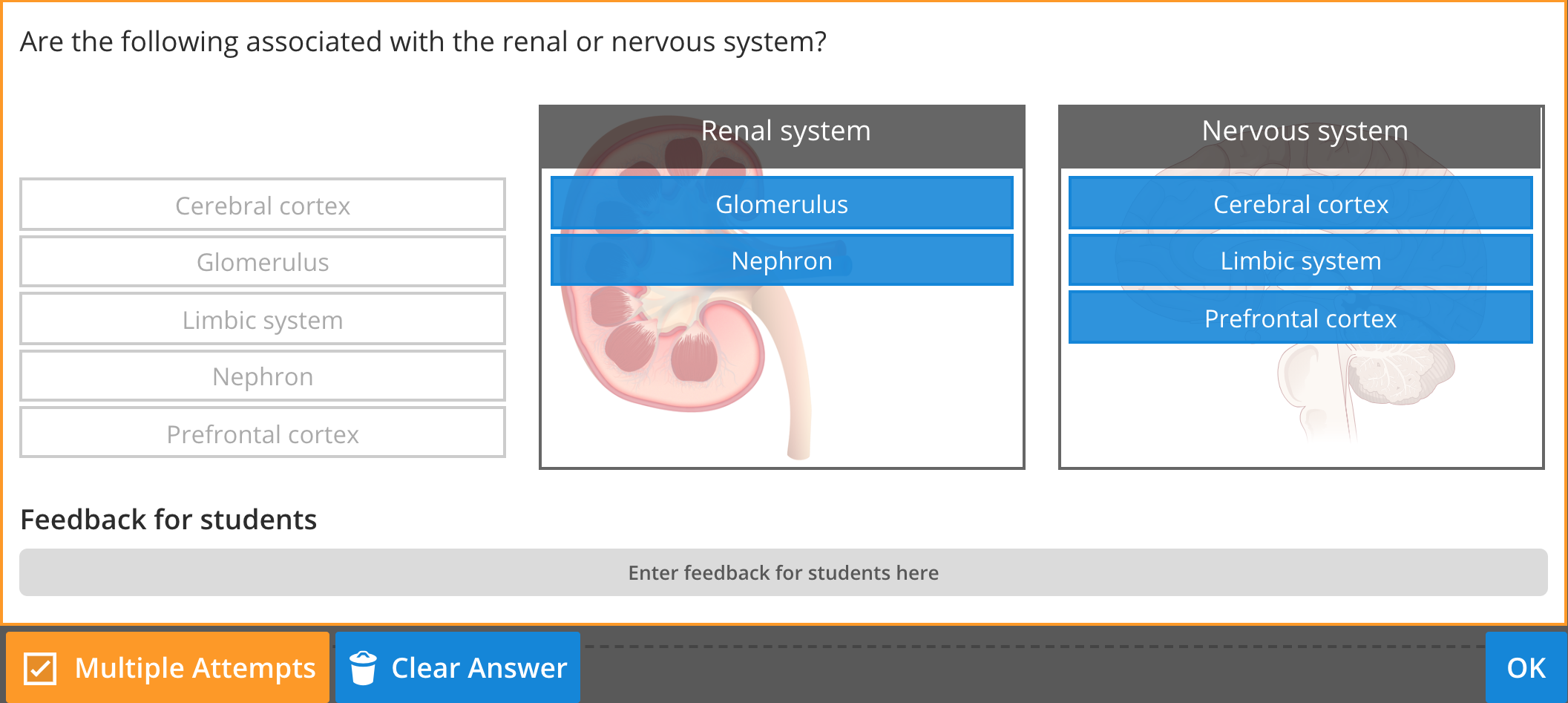
To reset your answer, select Clear Answer. When you are finished, select Done.
To update categories or labels later, select the panel and choose Edit.