

To allow students to submit feedback in your Lt course, you'll first need to assign a Student Contact:
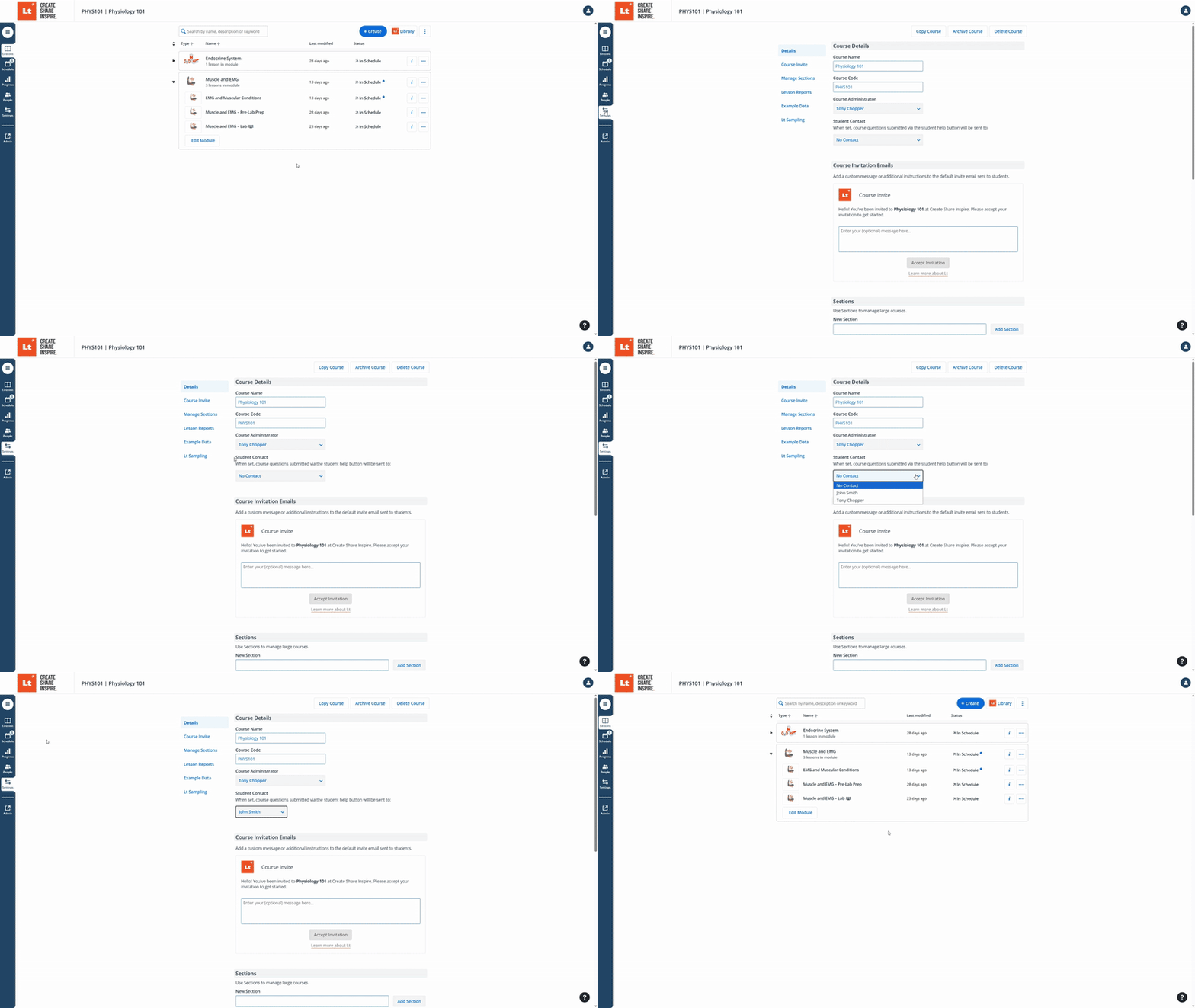
Go to your Course Settings.
Under Student Contact, select the appropriate staff member.
Once a contact is set, students will see a Help button while working through the course. When clicked, it allows them to send a message directly to the assigned contact.
If you'd like students to leave feedback within a specific lesson (e.g. general thoughts or reflections), you can add a Text Question:
Optional: In the lesson editor, go to Pages → New Page
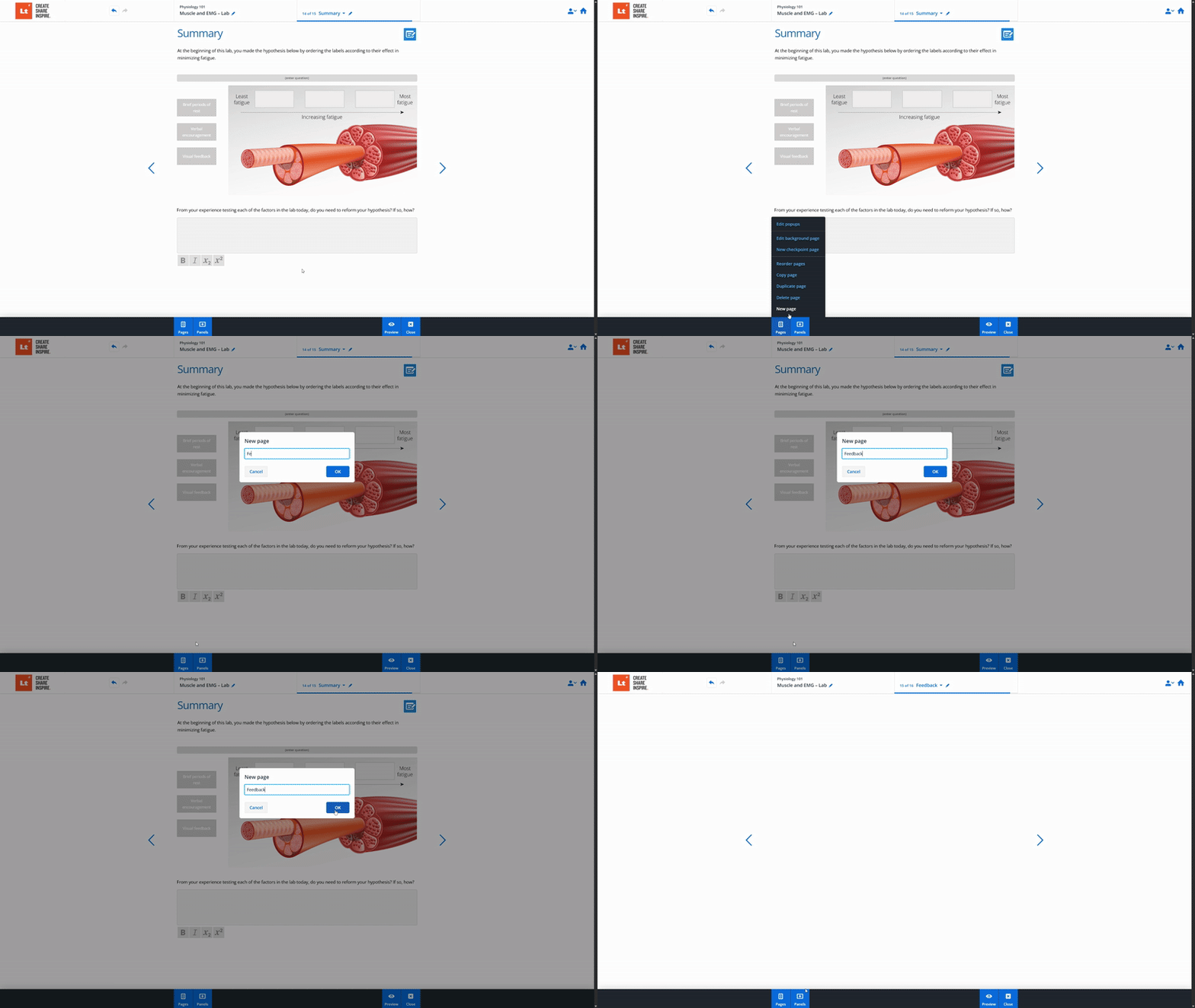
Panels → Questions → Text Question (select a large answer box for open feedback).
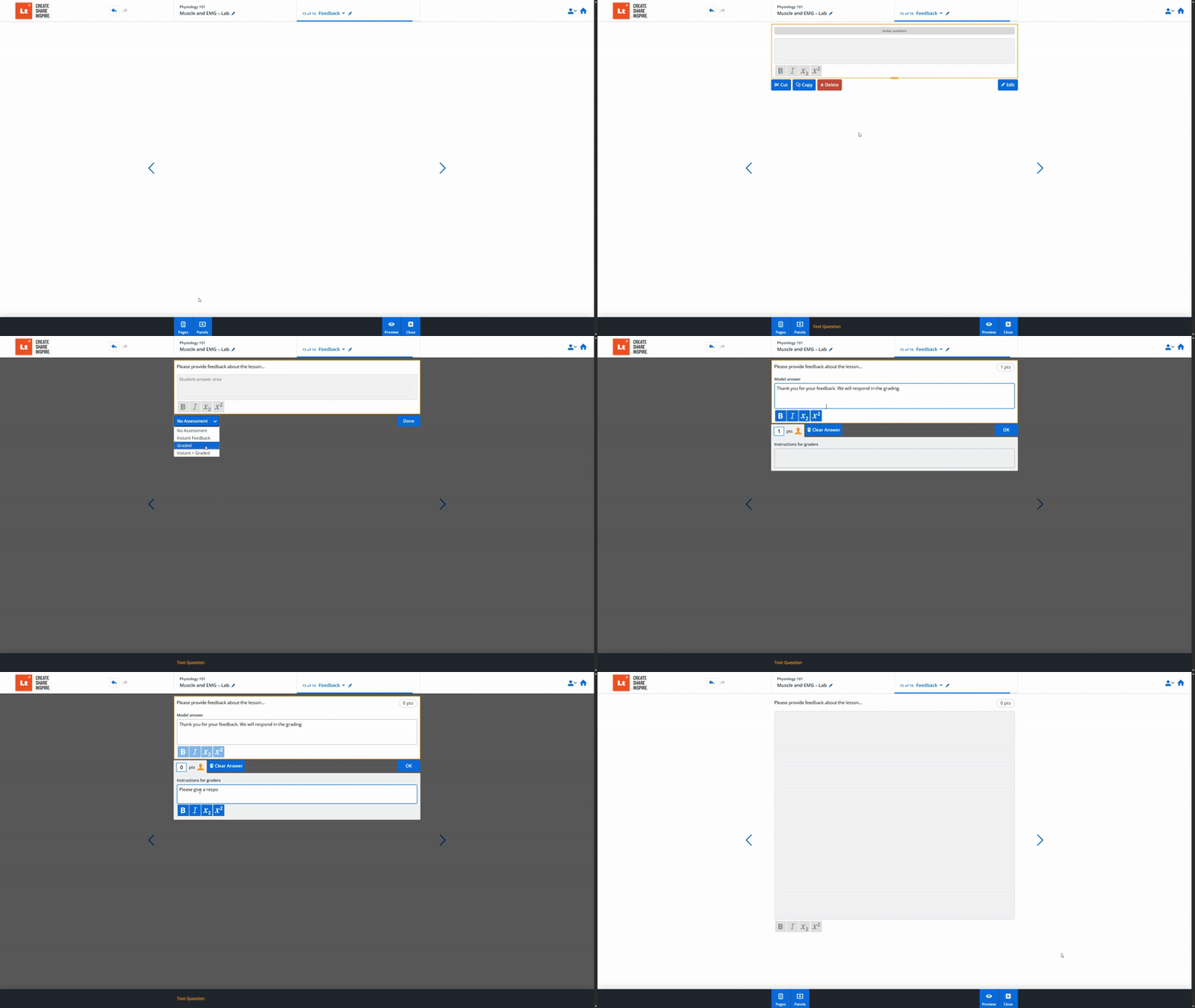
Click the panel, then click Edit.
Under Assessment Options, select Graded or Instant + Graded.
Click Set Answer and assign 0 marks.
Optional: Add Instructions for grader and instant message for the student.
Student responses will appear in the Grading Interface, where you can view and respond using the built-in Feedback option.