

The Text Question panel allows students to enter short written responses. It is useful for encouraging original thinking, checking understanding, and prompting reflection.
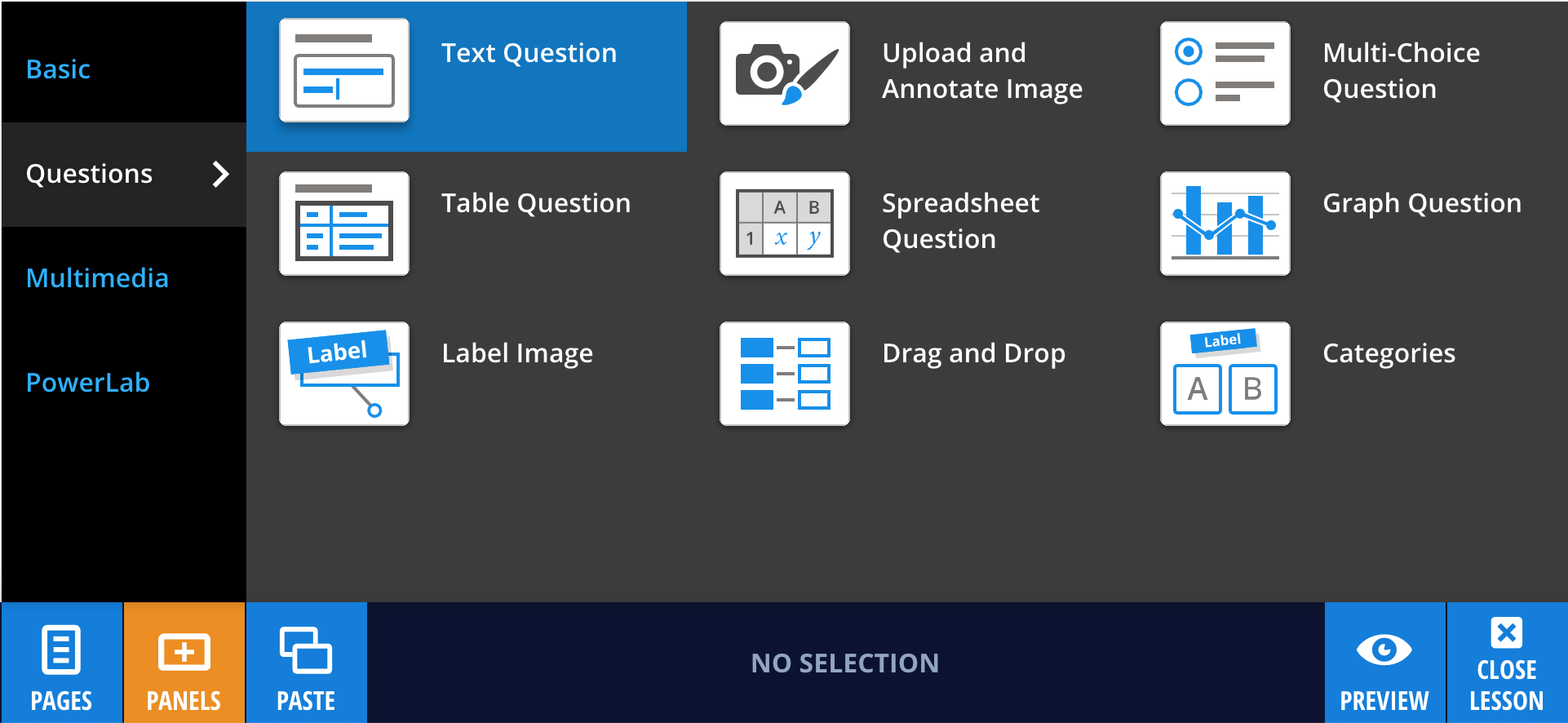
To add a Text Question panel, select Panels from the footer, then choose Questions from the Panels menu. Drag and drop the Text Question panel onto your lesson page.
Editing your Text Question panel
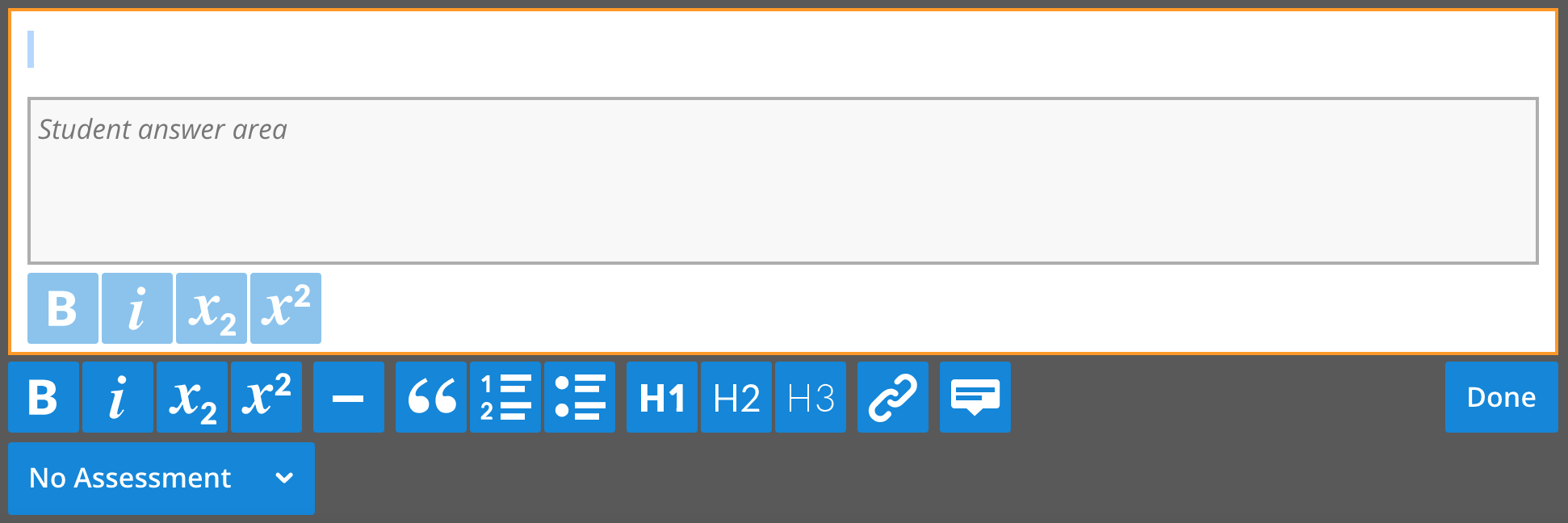
To enter your question, double-click the panel or select Edit, then type your question into the text field.
Adding feedback
To provide a model answer, select an assessment type, then choose Set Answer from the panel editing menu. Enter your model answer in the field provided.
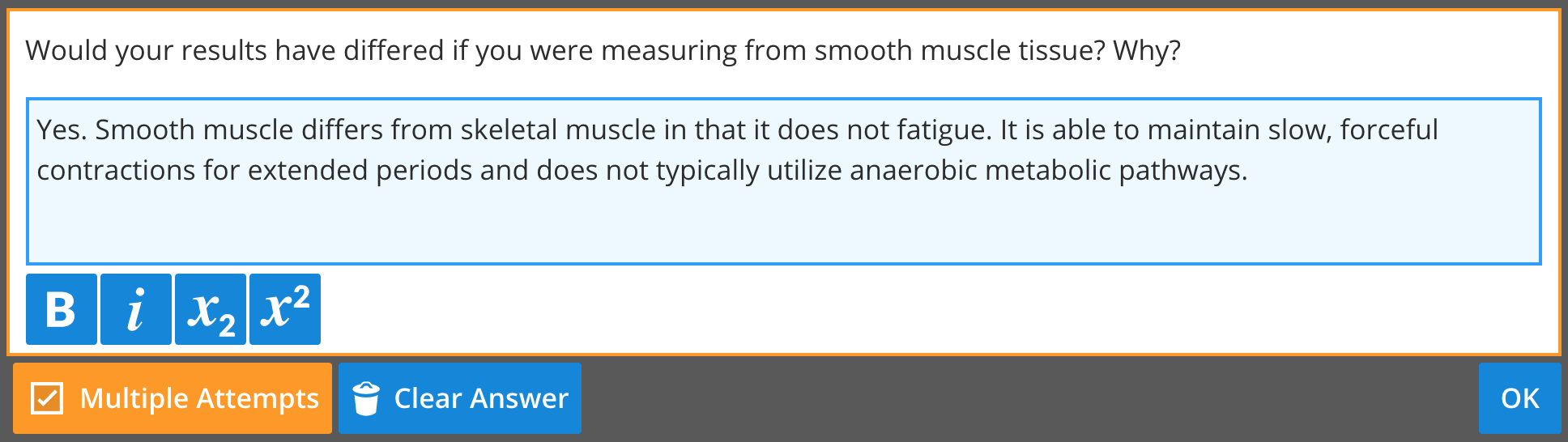
Select OK, then Done to save your changes. A Check Answer button will appear below the panel for students.
To update your model answer, select Edit, then Edit Answer. To remove it, select Clear Answer.
To preview how students will experience the question and feedback, select Preview from the footer. Select Exit Preview to return to editing mode.