

The Upload and Annotate Image panel allows students to upload images, annotate images, or both. It is useful for visual learning activities, labelling tasks, and personalised responses.
To add an Upload and Annotate Image panel, select Panels from the footer, then choose Questions from the Panels menu. Drag and drop the Upload and Annotate Image panel onto your lesson page.
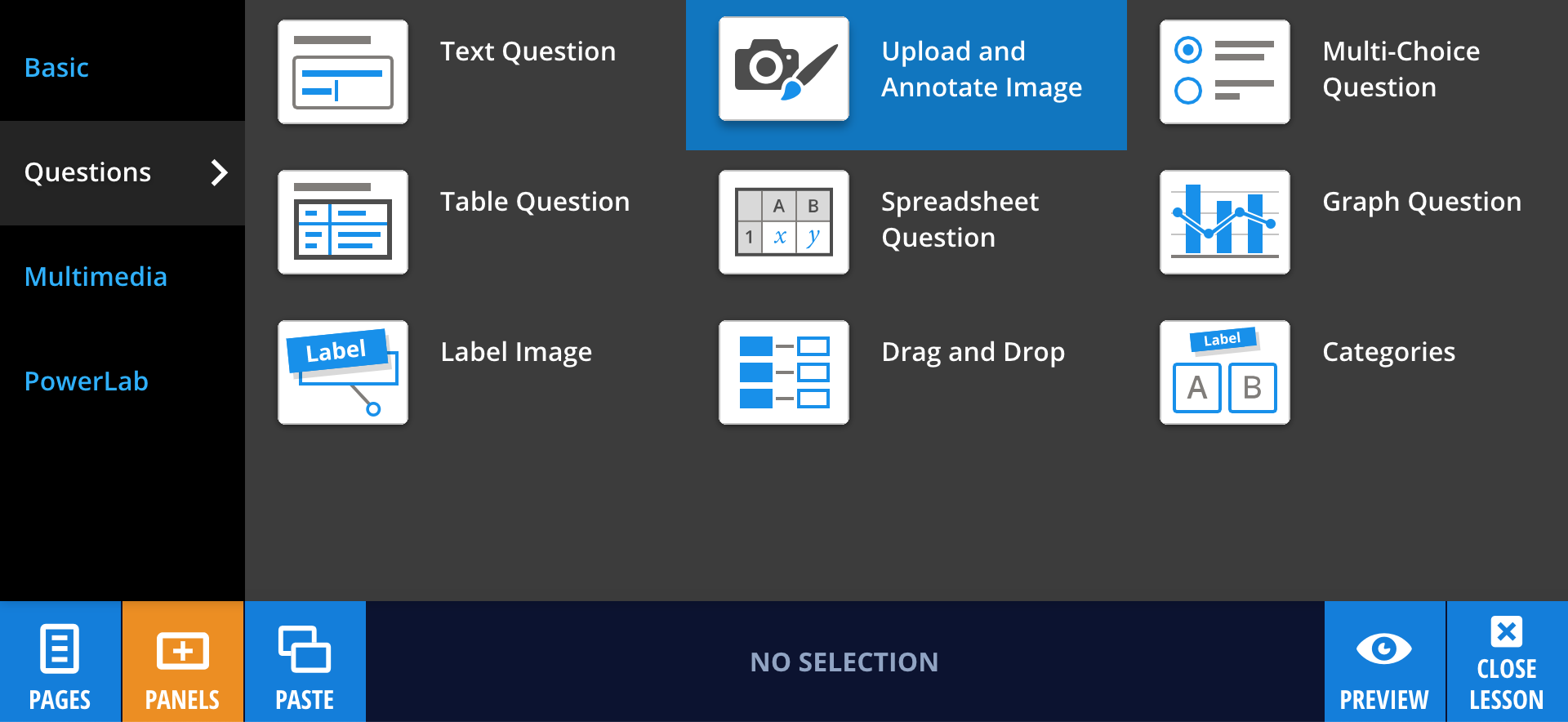
The panel includes three modes, which can be selected from the Style menu in the panel properties.
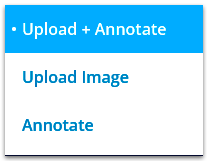
Upload Image
Select Upload Image to allow students to upload their own image. You can add instructions by selecting Edit and entering text in the question field.
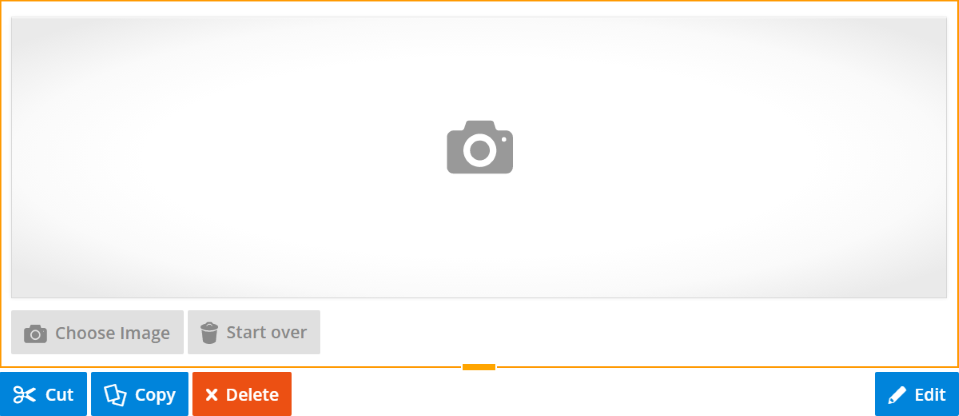
To provide a model answer, select an assessment type, then choose Set Answer. You can upload an image using Choose Image or drag and drop a file onto the panel. Add feedback in the field below the image if required.
To update or remove the model answer, use Change Image or Clear Answer, then select OK to save.
Annotate Image
Select Annotate to provide an image for students to label or mark up. Add an image by dragging and dropping it onto the panel or selecting Add Image.

Add instructions or a question in the text field at the top of the panel.
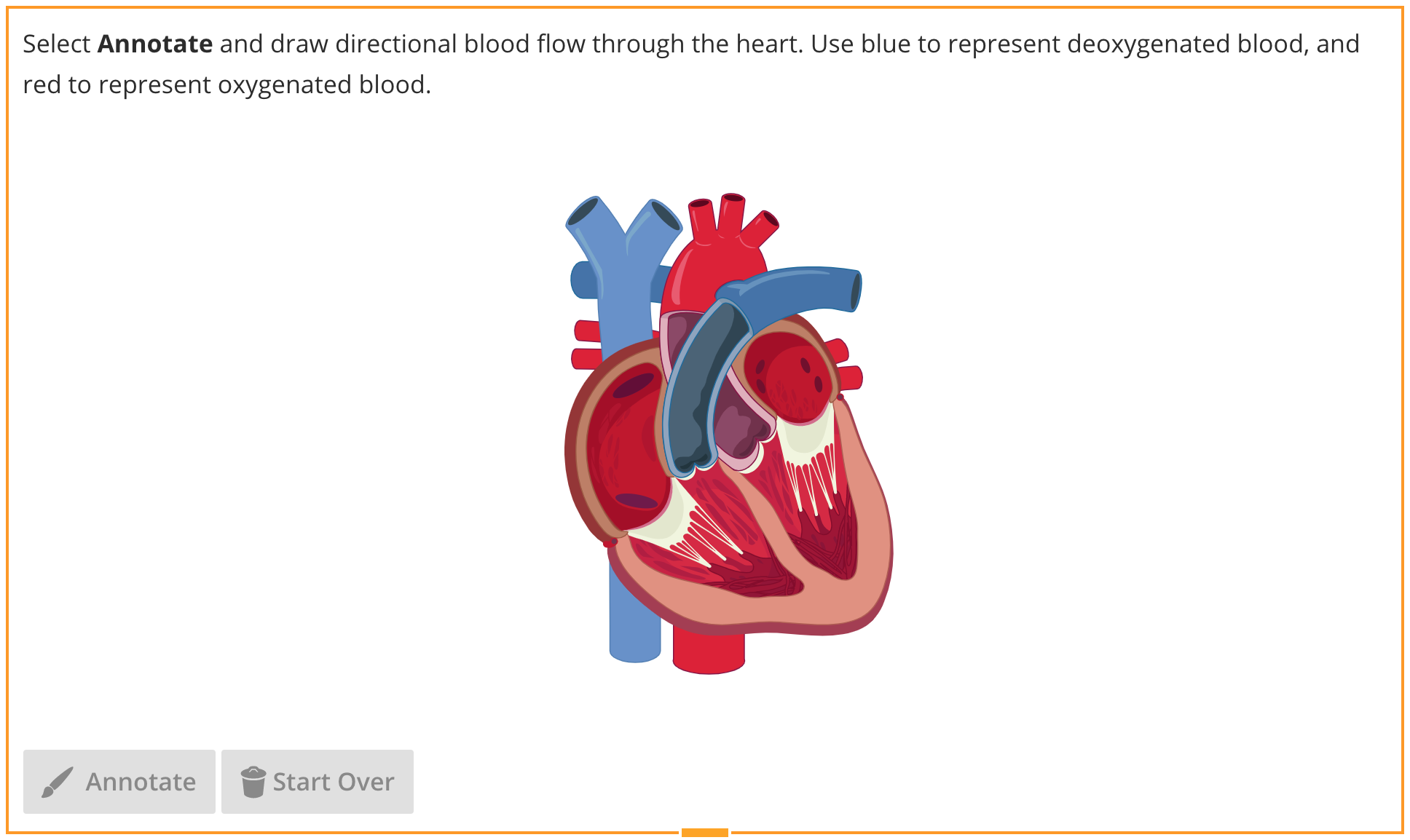
To add a model answer, select an assessment type, then choose Set Answer. You can annotate the image using the available tools, including text, drawing, arrows, and selection tools.
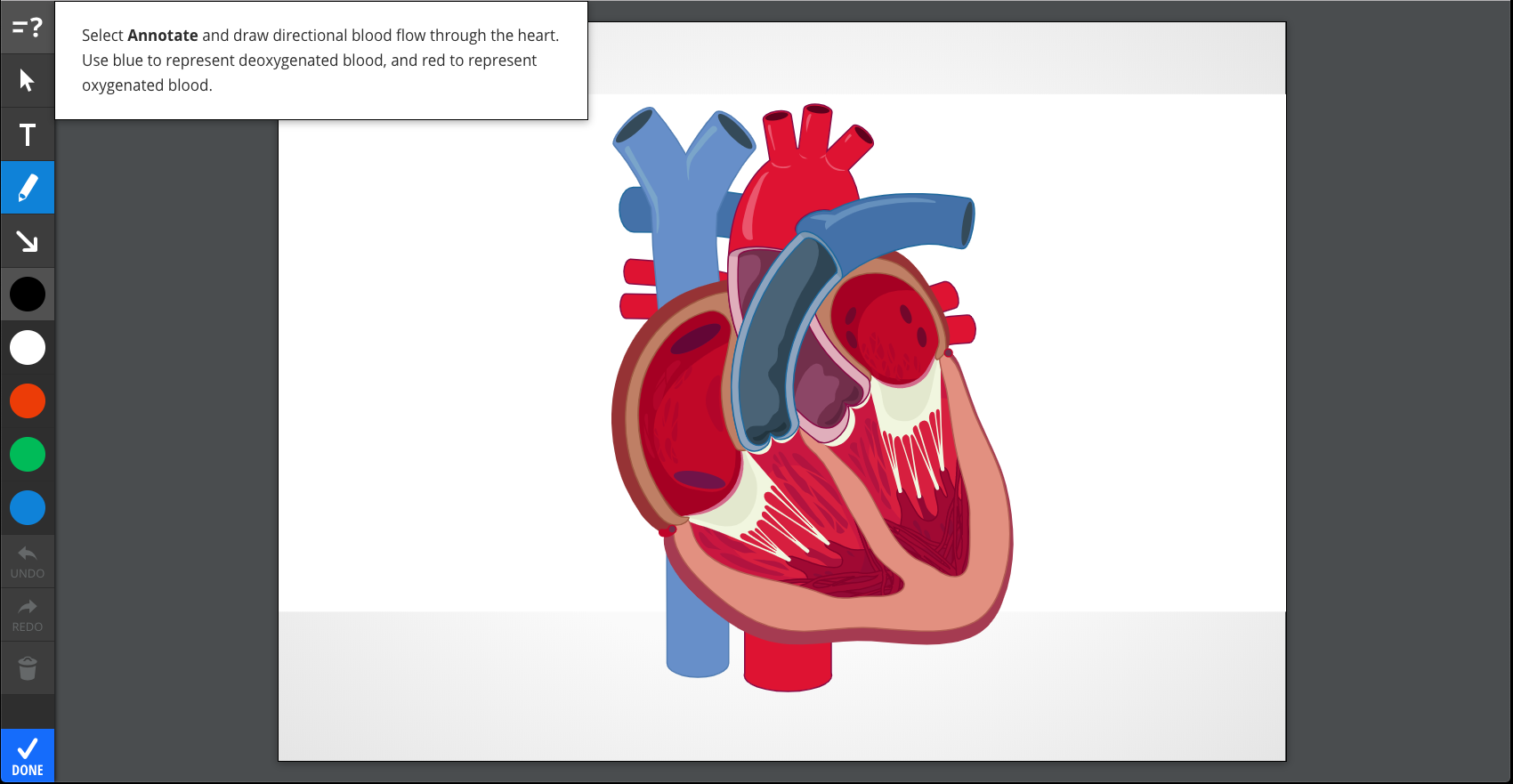
Select OK to save your model answer. You can update it at any time using Edit Answer, or remove it using Clear Answer.
Upload and Annotate Image
Select Upload + Annotate to allow students to upload and annotate their own images.
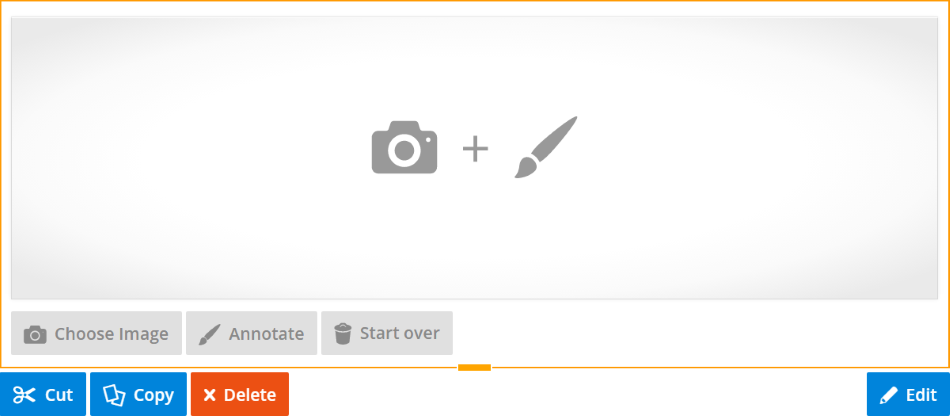
While in Edit mode, add instructions or a question in the text field. To provide a model answer, select an assessment type, then choose Set Answer.
Upload a model image using Choose Image, and optionally annotate it using Annotate. You can update or remove the model answer using Change Image or Clear Answer.
Select OK, then Done to finish editing.