

The Multiple Choice Question panel allows students to select from a list of answer options. It is a useful way to assess understanding and provide immediate feedback.
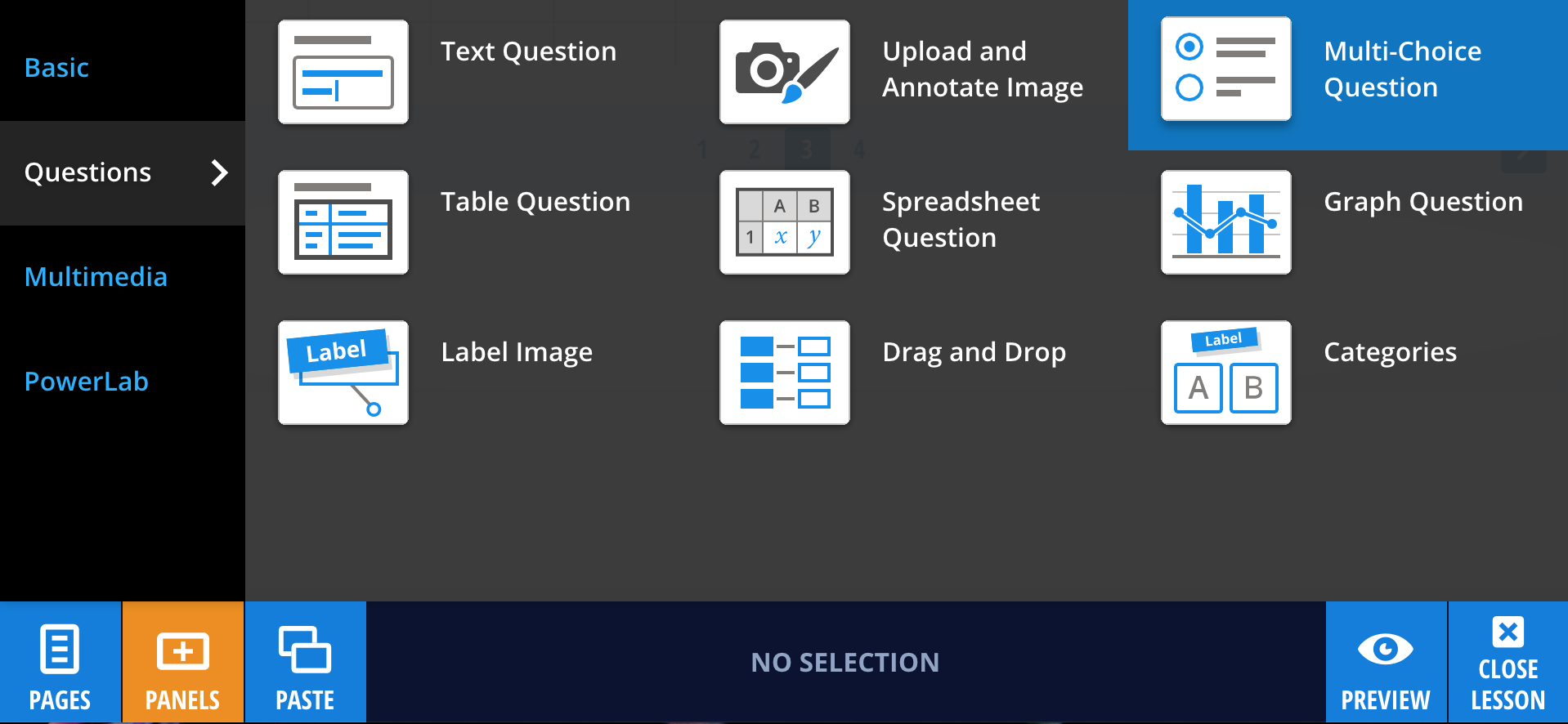
To add a Multiple Choice Question panel, select Panels from the footer, then choose Questions from the Panels menu. Drag and drop the Multiple Choice Question panel onto your lesson page.
Editing your Multiple Choice Question panel
To enter your question, select the panel or choose Edit, then type your question into the text field.
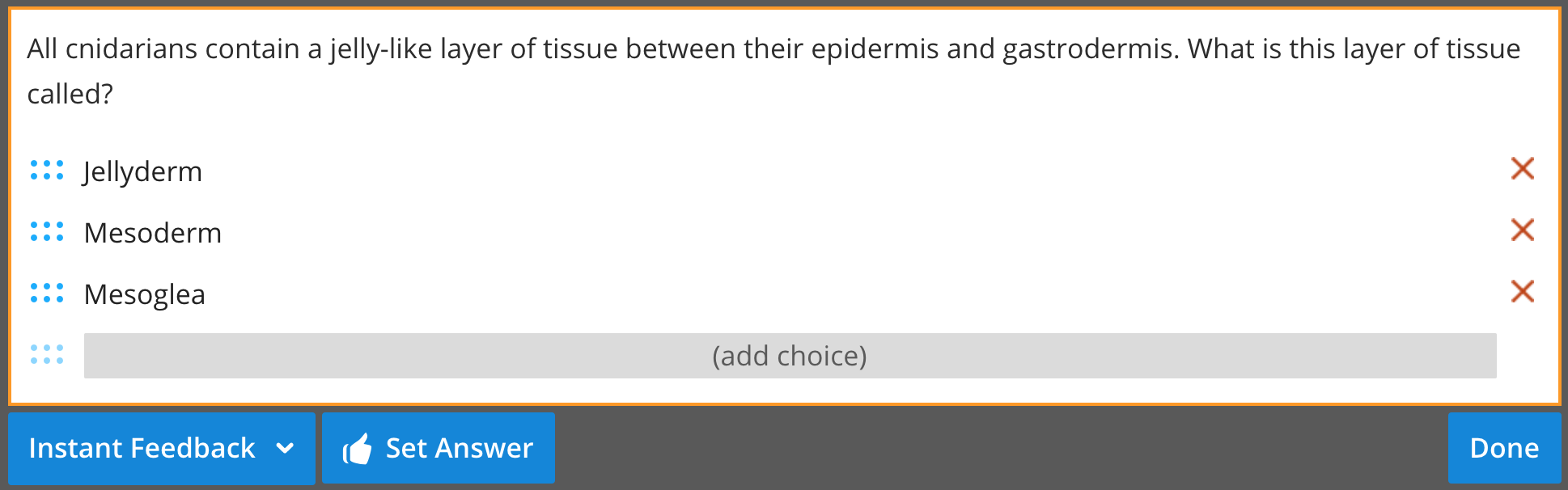
Enter your answer options in the available fields. To add more options, use the add choice field. To remove an option, select the x icon next to it.
Setting correct answers and feedback
Select Set Answer to choose the correct answer. You can also enter feedback for correct and incorrect responses in the feedback field.
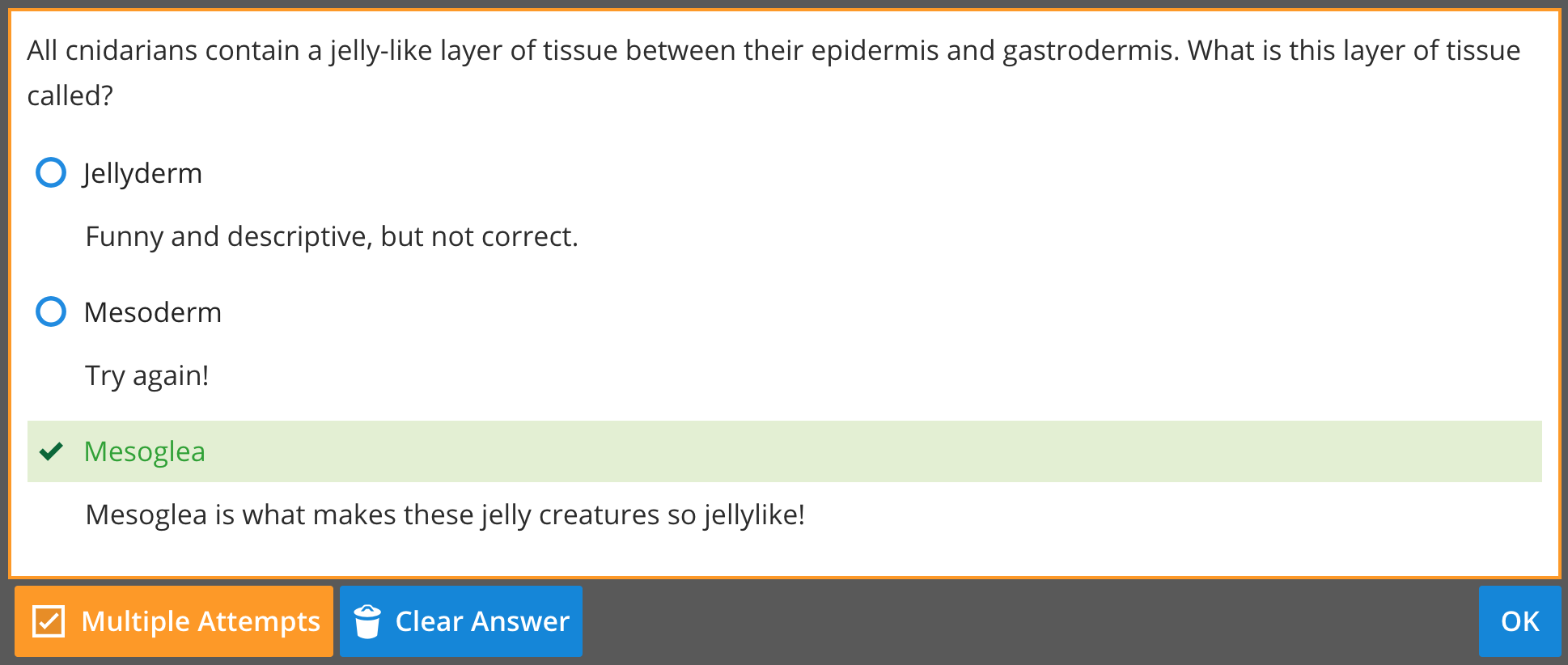
To reset your answer selection, select Clear Answer. When you are finished, select OK, then Done to save your changes.
To preview how the question will appear to students, select Preview from the footer. Students can submit their answer using the Check Answer button and view your feedback.