

image
Bio-Rad
Partners
image
Vernier
Partners
Equivital
Partners
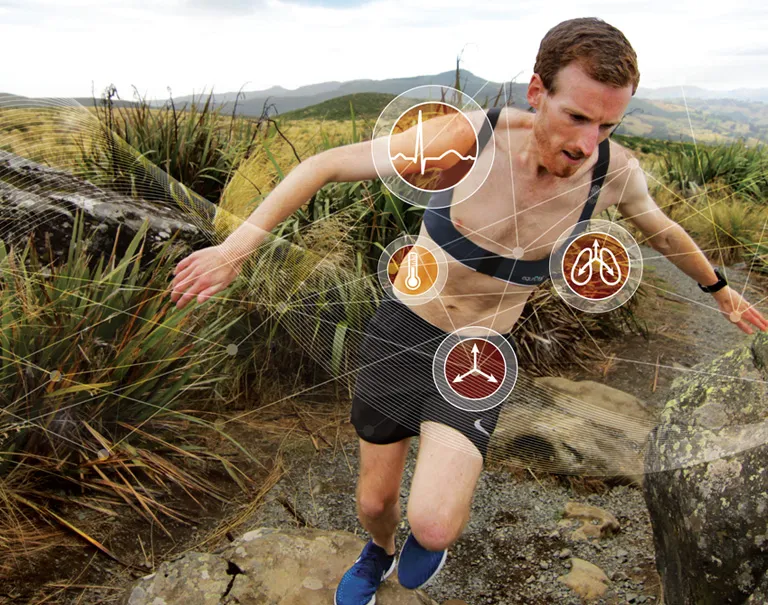
Overview Core System Overview Equivital Ancillaries Applications Equivital & LabChart Download Brochure Removing the distance barrier so you can leave the lab behind From outdoor exercise research to sleep studies, Equivital’s wireless physiological...
image
Radnoti
Partners
image
Warner Instruments
Partners

Millar
Partners
Your Research, Your Way. Millar and ADInstruments create a seamless pressure and pressure-volume system. We offer unparalleled accuracy, reliability, and data quality with Millar’s gold-standard Mikro-Tip® catheter technology and hardware, alongside...
image
Transonic
Partners
Bringing life science flow solutions to the world Related Applications Tubing Flow → ADInstruments and Transonic for Tubing Flow Research Isolated Tissue and Organs → ADInstruments and Transonic for Isolated Tissue and Organ Research Invasive Blood...
text
Information for GLP Customers
Documentation
As of July 20th 2018, the website to renew certificates (glp.adinstruments.com) will be shutdown and no longer available for GLP users to renew certificates for their GLP installations. Affected users will now obtain certificates from a third party...
text
Navigating an Lt Lesson
Documentation
The lesson header in Lt acts as your navigation map, showing you where you are and where you can go within a lesson. It provides key information and tools to help you stay oriented and make the most of your learning experience. Navigating the Lesson...
text
Lt Question Types
Documentation
Lt lessons are highly interactive and include various question types designed to engage your thinking. If you see a Check Answer button after a question, you can select it to instantly receive feedback on your work. You may even get helpful hints to...
text
LabChart Online Retirement
Documentation
After 5 years, we’ve observed that Send and Publish hasn’t had the impact we hoped they would. Of our many LabChart customers, only a very small number have used these features. That’s why we’ve made the difficult decision to discontinue Send and...
text
Lt Student Homepage
Documentation
Navigating Your Lt Homepage When you log in to Lt, you are taken directly to your homepage: a centralized and organized space displaying all your courses, lessons, and modules. This guide will help you understand how to navigate your homepage and...
text
Lt Modules and Lessons
Documentation
All of your courses are listed in the left-hand panel of your homepage. Selecting a course will show you all the lessons and modules (groups of lessons) that are available for you to work through. For example, this student has access to the Marine...
text
Lt Device and Browser Support
Documentation
Lt supports a variety of browsers to make teaching and learning easier.
text
Changing Your Lt Password
Documentation
Changing Your Lt Password If You Know Your Password To change your Lt password when you still have access: Log in to Lt. Select your name or email address in the top-right corner of the Lt window. Choose Change Password from the menu. Follow the...
text
Password Guidelines
Documentation
Important: Our staff will never ask you for your password. Your password must only be used to enter https:// websites, which are protected by a certificate. Constructing a good password We take security seriously within Lt. For us to achieve our goal...
text
Changing Your Lt Email Address
Documentation
Your email address serves as your primary identifier within Lt. Steps to Change Your Email Address Log in to Lt. Select your name or email address in the top-right corner of the window. Click on Change Email. Enter your new email address into the...
text
Creating Lt Audio Panels
Documentation
Using the Audio Panel in Lt The Audio Panel allows you to add audio files to your lessons, enhancing the learning experience for your students. You can easily find the Audio Panel by selecting PANELS from the authoring toolbox in the footer and then...
text
Creating Lt Button Panels
Documentation
Authors can use the Button panel to either link to a popup or attach a downloadable file. You can also add an image to customize the appearance of the Button. To add a Button panel, select PANELS from the footer and then select Basic. Popup You can...
text
Creating Lt Categories Panels
Documentation
The Categories panel allows you to ask students to sort a list of labels into different categories. To add one to your lesson, select PANELS in the footer, and then select Categories from the Questions menu. Drag and drop the Categories panel icon to...