

The Table Question panel allows students to enter data and create their own tables. It is useful for collecting responses, recording results, and working with structured data.
Note: The Table, Table Question, Spreadsheet, and Spreadsheet Question panels share similar features. For more information on when to use each, see Table and Spreadsheet Panels in Lt.
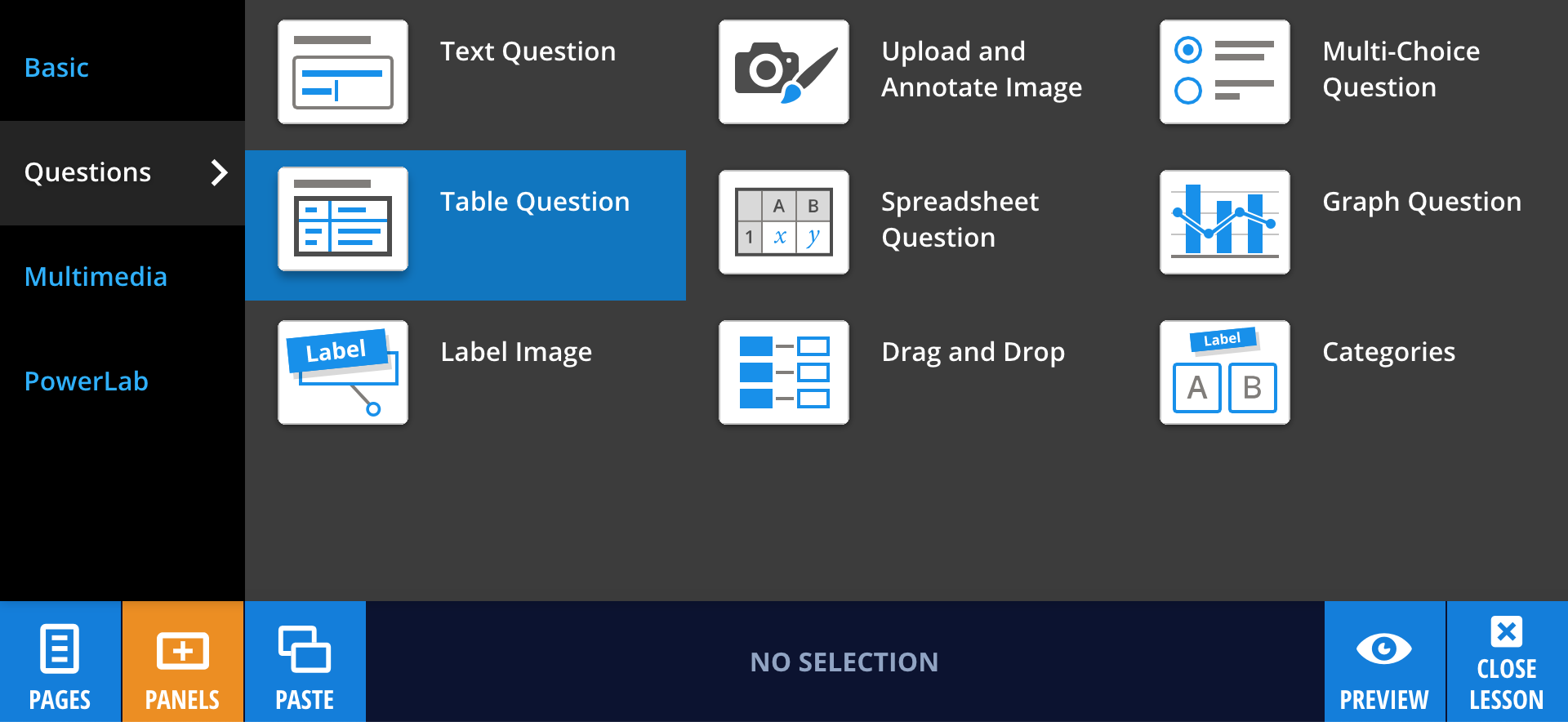
To add a Table Question panel, select Panels from the footer, then choose Questions from the Panels menu. Drag and drop the Table Question panel onto your lesson page.
A default table with two rows and two columns will appear, along with a question field at the top. You can customise the table layout to suit your needs.
Simple mode is enabled by default and hides formatting controls from students. To allow students to edit table formatting, disable this option in the panel footer.

Editing your Table Question panel
To add your question or instructions, select Edit, then enter text in the question field.
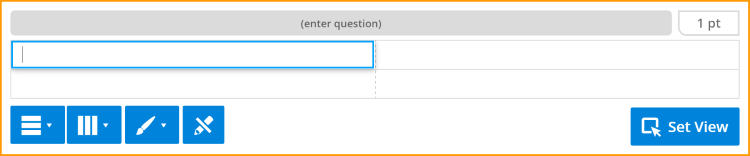
Use the table controls  to add or delete rows and columns, adjust cell colours, and set header rows or columns.
Header cells are displayed in bold blue text to distinguish them from standard cells. For more information on table formatting, see the Table Panel.
You can also use supported functions within cells. See the full list of functions for details.
When you are finished editing, select Done.
Setting a view region
You can control which cells students can see and interact with by setting a view region.
To set a view region, select Set View  , then drag to select the cells you want to display.
You can update the view region at any time by selecting Set View again.