LabChart Lightning Support

Beginners Guide to using LabChart Lightning

If you don't already have a license but want to see what the fuss is about, try out our  free 30 day trial

2: Getting Started

New Users

Here are some simple steps to get you started

Want a bit more detail? Check out our introductory webinar series.

Have you used LabChart before?

Here are some changes to expect before getting started with LabChart Lightning

Want a bit more detail? Check out our introductory webinar series.

LabChart Lightning Videos


Filter videos

Download the latest release: Windows  Mac  Mac (Apple silicon)

Releases

LabChart Lightning 1.14.3

Region Generators

You can now automate the creation of large quantities of regions using the new Region Generator view. This allows you to quickly collate data across your entire project, ready for viewing in the Table view.
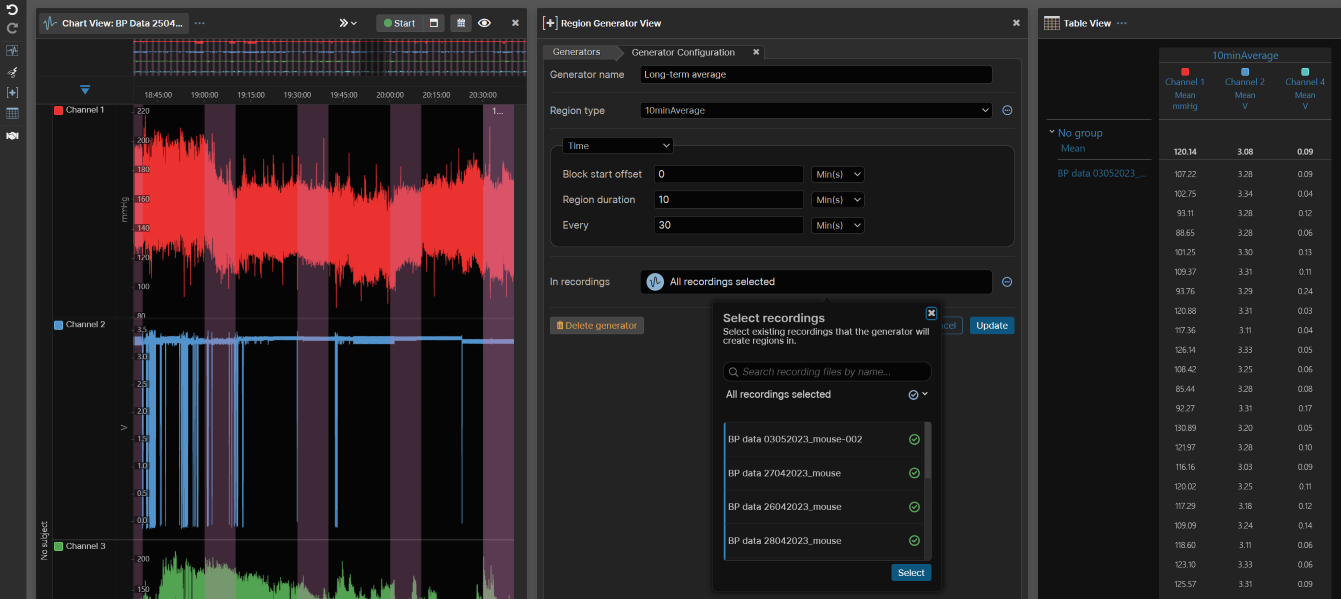
Region generator in use

Open the Region Generator view from the left-hand toolbar or from the View menu.
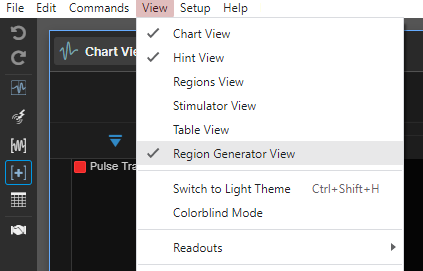
Toolbar and Menu access for Region Generator View

Regions can be generated on the basis of time throughout a recording block. You can specify the duration of generated regions, the period between beginnings, and an offset from the start of recording blocks from which to start creating regions.
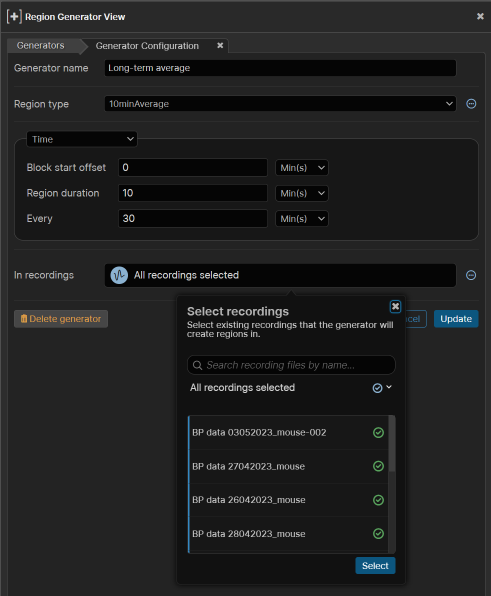
Settings for time based region creation

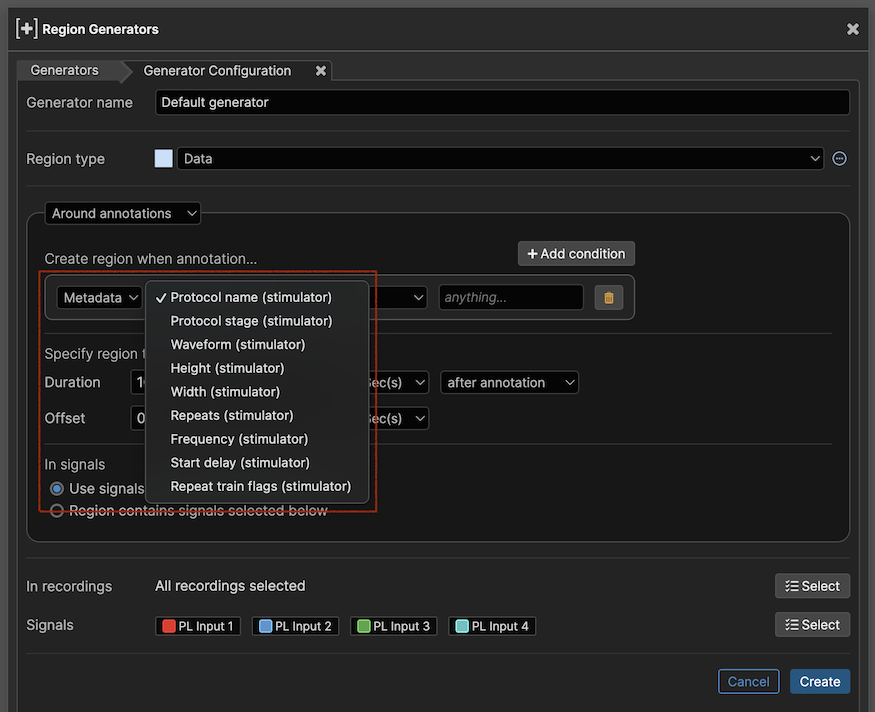
Regions can also be created based on annotations, generating regions between or around them. You can specify search criteria for annotation names or tags and timings around those annotations.
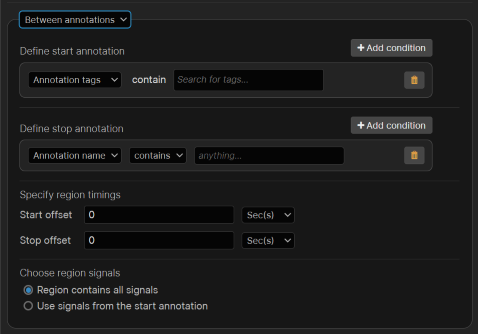
Settings for between-annotation-based region creation

Additional settings include the type of region to be created and the recordings in which to create them.

Improved Stimulator controls

We've made a number of improvements to help users using the stimulator:

  • Stimulator parameter increments can now be edited from within the Stimulator View.
  • If you are using the sampling control window to manage your stimulation during your experiment, you can now collapse these protocols to free up space so you can look at just the protocols you are interested at editing at any given time.
  • The Stimulator control panel can be opened directly from the Stimulator View using a button in the top right-hand corner.
  • You can now choose to specify the period and frequency at which your stimulator waveforms repeat.
  • You can now undo and redo any stimulator configuration changes you make.

New Table Export Options

This release includes a new export format for data from the table which is designed to make it easier to run statistical analyses on your summary data. We also provide template scripts to get you started at https://github.com/adinstruments/LabChartLightningScripts.

The Table View Properties now lets you select which format you want to export the table data in. This can be either the existing format where the data is exported as displayed in the table view, which is ideal for, e.g. Excel, or the new 'raw' format. This format is machine-readable and makes it easy to load your data into, for example, MATLAB, Python, or R.

Once exported, you can modify the template scripts from the GitHub repository to run your own analyses. The examples we provide demonstrate the basics of loading, reorganising, summarising, and running statistical tests on the table data.
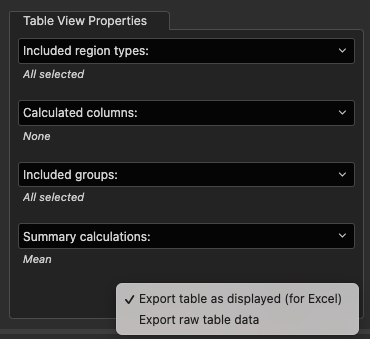
Table export options

Changes

Regions view

  • The Regions View has been removed. It may return in a different form in the future, with the goal of making it more useful and relevant.

Table view

  • The order of rows in the table is now in chronological order.
  • Improved load time of projects with large tables.
  • Drastically improved performance and accuracy of cyclic measurement columns within the table.
  • When you reapply signal calculations, non-cyclic measurement cells in the table view now stay up to date.
  • You can now see the events detected by cyclic measurement table cells in previews within the table.
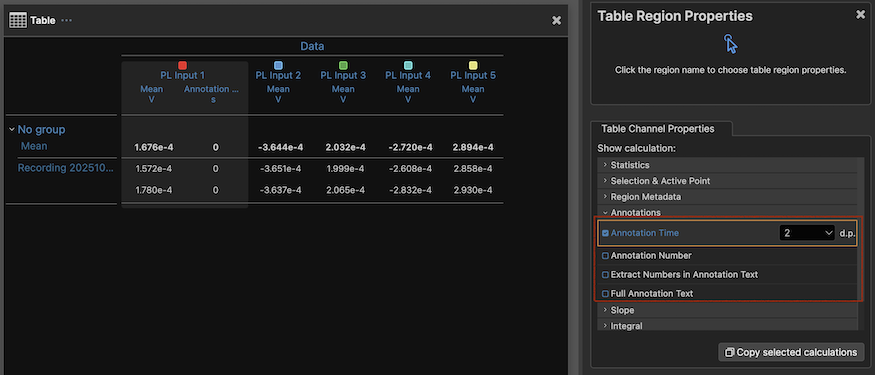
  • References to 'comments' in table calculations have been updated to refer to annotations.

Chart view

  • Signal trackers in chart view will now display data for the first or last samples in a block.
  • Errors no longer appear when using the delta start in the Chart View.
  • Reopening a project with a window of a different size now always displays all channels.

Stimulator

  • When stimulator hardware is responding too slowly or fails to respond for any reason, you now see a warning instead of LabChart Lightning crashing.
  • Stimulator protocol names are now case insensitive (you can no longer have a protocol named "Experiment" and a separate protocol named "experiment" within the same recording).
  • An edit to the increment amount for a stimulator parameter now saves if you dismiss the settings popover quickly.

Annotations

  • Annotations set to a subject will now only draw on signals associated with that subject.
  • Preset annotations and quick annotations can now be created on specific subjects.
  • Annotation edit controls will remain in sync after undoing or deleting an annotation.

Calculations

  • You can now edit all outputs and parameters for calculations with lots of outputs and/or parameters from the simple calculation view.
  • Improved stability of cyclic measurements calculations.

Scheduler

  • Changes made to schedule settings are now saved if you close the project while editing it.
  • Your schedule now records successfully after exiting the sampling settings popup when you edit the settings during its start time.

Other changes

  • Switching from multiple subjects to the same subject on all signals no longer adds a (1) to the names of some signals.
  • Signal names are no longer lost when device settings are changed.
  • Selecting the "Today" filter in the recording picker will correctly show new recordings.
  • When your login session expires you are now prompted to log in again instead of being told your username and email were incorrect.
  • Reapplying a valid disabled unit conversion now reenables the conversion.
  • Secondary windows no longer disappear when shifted to a second monitor on macOS.
  • The TimeFormat specifier in the header of text-based data export formats is now correctly populated.
  • Readout windows will not prevent quitting LabChart Lightning on macOS.
  • LabChart Lightning cannot quit while a project is loading.
  • Errors in opening a project do not prevent quitting LabChart Lightning.

New Known Issues

  • Some columns in the table may disappear and default back to showing the mean as part of upgrading to this version. You can turn these columns back on again manually after upgrading.
  • Generated regions created between annotations cannot be made over multiple blocks.

LabChart Lightning 1.13.2

Changes

  • Exporting a Recording as .txt from the file menu now correctly exports.
LabChart Lightning 1.13.1

Signal Calculations

Renaming Signal Calculations

When creating custom calculations you can now specify default names for your output signals. This means that you don’t have to rename the signals every time you reuse the calculation. Having signal names that are consistent across recordings makes it easier and faster to analyse data.
Renaming Signal Calculations

For calculated signals, the default name appears as placeholder text in the signal settings.

Renaming Signals

Enhanced Calculation Descriptions

You can add descriptions to outputs in the calculation builder.

Enhanced Calculation Descriptions

Anyone using your calculation can see your description, even when saving or sharing the calculation.

Enhanced Calculation Descriptions Popover

Edit Signal Information in Channel Settings Popup

You can now edit signal information in the channel settings popup. You can edit the color and name of each signal contained in the channel, in one convenient place.

Channel Settings Popup

Renaming Signals to the Same Name

You can now rename a signal to the same name as another signal within a single recording, provided each signal is in a different subject. This makes Table View analysis more convenient as you can easily align data in columns for easy comparison.

Duplicate Signal Names

Exporting Regions Data to the HDF5 Format

You can now export all regions within a project to the HDF5 file format. You can open HDF5 files using a broad range of programs, including MatLab, R-Studio and Python.

For more details on the HDF5 file format, see the HDF Group Website. Exported HDF5 files are structured to best represent a project and its recordings.

The Export All Regions command can be found under the Export file menu.

Exporting to HDF5

Stimulator Sampling Controls

You can now edit your stimulator settings for your active protocols while sampling via the sampling control window.

This also comes with large buttons to increment and decrement your parameters by custom amounts while you are running your experiment.

Sampling control window

You can now resize the sampling control window to suit your experiment setup. You can also choose to hide either the annotation or stimulator controls depending on your requirements.

Sampling control window

Changes

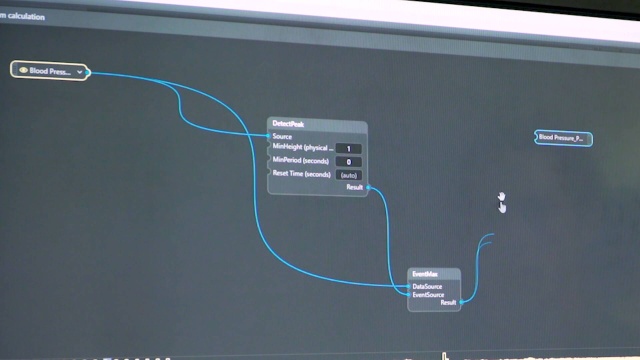
  • DetectEDP has been added to the calculation library. You can use this in custom calculations to detect end-diastole from a blood pressure signal.
  • Warnings now display in sampling setting previews when sampling cannot start.
  • Adding an annotation to a calculated signal adds the annotation to all signals.
  • When searching for subjects, recordings containing multiple subjects are now included.
  • When you close views or resize your window while the Chart View is automatically scrolling, the Chart View continues to automatically scroll.

New Known Issues

  • Readouts and sampling control windows disappear when dragged to a second monitor on Mac.
  • If a recording has calculated signals but no recorded signals, editing the calculated signals or subject information can cause unexpected behaviour.

LabChart Lightning 1.12.1

Stimulator

Stimulator Toolbar

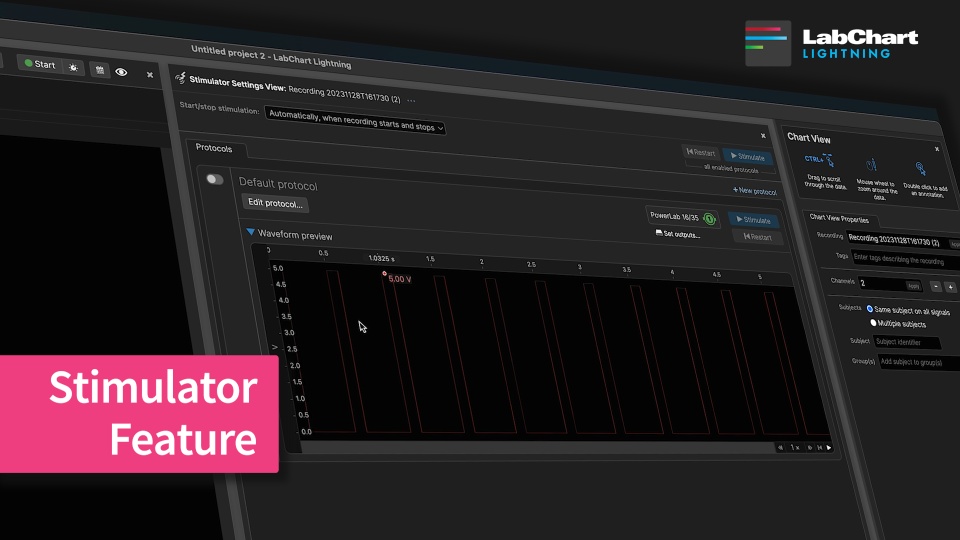
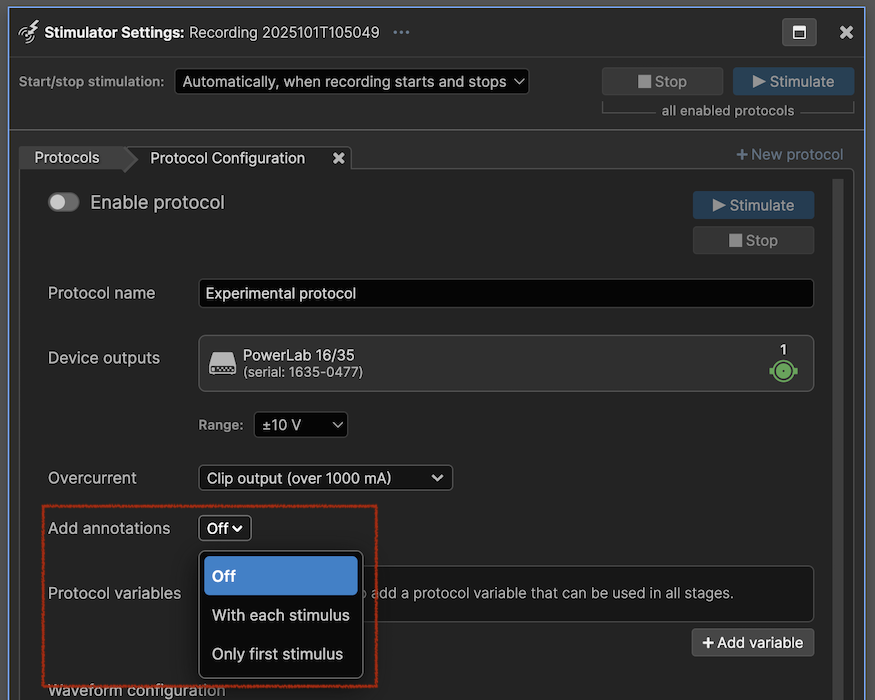
You can now use your Stimulator hardware with LabChart Lightning. This allows you to generate stimulus waveforms using the PowerLab analog outputs, Stimulus Isolators and even multiple Stimulus Isolators connected through C Series Front-End Interfaces.

LabChart Lightning lets you create multiple stimulus protocols for your project. You can easily define calibration phases separate from your experiment phases or even set up different stimulus configurations to stimulate together.

Click the Stimulator icon on the left toolbar to access the Stimulator view:

Stimulator Toolbar

In this View, you can:

  • Create new stimulus protocols from scratch or duplicate one to build on a configuration.
  • Preview your stimulus waveforms in the Protocols list and the Protocol Configuration panel.
  • Control how you want your stimulus to start.
  • Define which hardware outputs you want to generate your stimulus output from.
  • Define the shape of the stimulus waveform you want to output.
  • Control all enabled protocols together or independently of each other, depending on what you need.

Stimulator Protocols

Lightning Stimulator supports basic LabChart 8 waveform types such as:

  • Pulse,
  • Sinewave,
  • Triangle etc.

In Lightning Stimulator, we've also added new built-in support for typical pulse burst applications such as:

  • Height Delta,
  • Width Delta,
  • Frequency Delta, and
  • S1-S2 Delta.

Stimulator Protocols

Turning inputs on/off

You can now turn the recording inputs on/off individually in the signal settings dialog. The recorded signal settings can be accessed from either the Setup menu, or clicking the signal icon next to the devices popup.

Turn inputs on and off

Exporting selected data to the HDF5 format.

LabChart Lightning now allows you to export selected data to the HDF5 file format. HDF5 files can be opened using a broad range of programs, including MatLab, R-Studio and Python.

HDF5 is a file format that allows large amounts of data to be organized in a hierarchical manner, allowing for the creation of groups and datasets within a file. This structure enables the organization of data in a way that reflects a filesytem with groups and datasets being analagous to directories and files. See the HDF Group Website for more details.

To export to HDF5, select the data in the recording you would like to export, then bring up the exporting dialog by clicking on the export button in the selection panel or use the sequence File>Export>Export selection... from the menu bar. Make sure the HDF5 file format is used in the export selection dialog box (it is set as the default option). Once the save button has been pressed, a modal box will appear informing the user of the progress of the data exporting. 

Exporting to HDF5

Changes

  • Performing a delta start action across all signals and then closing and reopening the project multiple times closes the project successfully.
  • Input options apply correctly for C Series Instrument & Front End Interfaces in regions that use commas for decimal separators.
  • Lightning will correctly load for users who have an apostrophe in their username.
  • Readouts of calculated signals loaded from .lclset files will display data without requiring a reload.
  • To support using the desired PowerLab Stimulator outputs when using multiple non-C Series PowerLabs or a mix of non-C Series PowerLabs and C Series PowerLabs, you can now change the Primary device (or devices if C Series) in the Recording Devices popup by clicking on the Primary/Secondary device icons.
  • C Series Instrument Interfaces no longer have a small DC offset up to 50uV on certain units.
  • Spikes at the beginning of blocks no longer occur with C Series Instrument Interfaces.
  • Improved power handling on PowerLab C ports.

New Known Issues

  • There is currently no undo/redo support for Stimulator changes.
  • Data recovery in the event of a crash will not recover Stimulator settings.
  • Stimulator user interface may not show device errors that occur while sampling.

LabChart Lightning 1.11.4

Changes

  • Fixed ability to change input settings for CII PowerLabs.
  • Improved stability of project upgrades.
  • Prevent checking for new versions of LabChart Lightning while the application is busy.

LabChart Lightning 1.11.3

Changes

  • Improved load time of projects with many signal calculations.
  • Improved performance of creating recordings with many signal calculations.
  • Improved performance while selecting data over many signals.
  • LabChart Lightning will no longer update while a schedule is running.
  • Improved performance in the Table View when working with large amounts of data.
  • The Table View now displays a loading spinner while opening.

LabChart Lightning 1.11.1

Time Readout

You can now view the time information for your recordings in a separate window. This can be accessed from either the View menu, or right-clicking in the Chart View x-axis.

Time Readout

While sampling and viewing incoming data, the time readout will display the current time. Otherwise, it will display the time at the cursor position. The time displayed is formatted using the project's time display mode (start of block or time of day).

Signal Information Panel

Detailed signal information can now be viewed using the Signal Information Panel. Simply alt-click (Windows), option-click (Mac),or right-click and select Show signal information... in a Chart View channel with one or more signals. A popover will appear allowing you to view information for all signals in the channel.

Signal Information Panel

The panel will initially show the block that was clicked over, but you can navigate through all of the blocks in the recording using the forward and back buttons.

Signal Information Panel

Device Plugin Development Support

  • Device plugins can now import built-in NodeJS modules e.g. http, os, path, etc.

Changes

  • Calculated signals can now be deleted from recordings by deleting the underlying calculation.

    Deleting Calculations

  • Improved the reliability of finding the NIBP Nano device.
  • Improved the NIBP workflow when HCU zeroing takes longer than expected.
  • Signal data draws more consistently when scrolling backwards or when blocks aren’t aligned.
  • Devices used by a recording no longer change unexpectedly when a PowerLabC is present.
  • Pods no longer zero unexpectedly.
  • You can now import .adidat files.
  • Improved stability of Lightning when using calculations on macOS with Apple silicon.
  • Occasional white screens on startup no longer occur.
  • Lightning will now more reliably open if internal files are missing or corrupt.

New Known Issues

  • There are no new known issues in this release.

LabChart Lightning 1.10.1

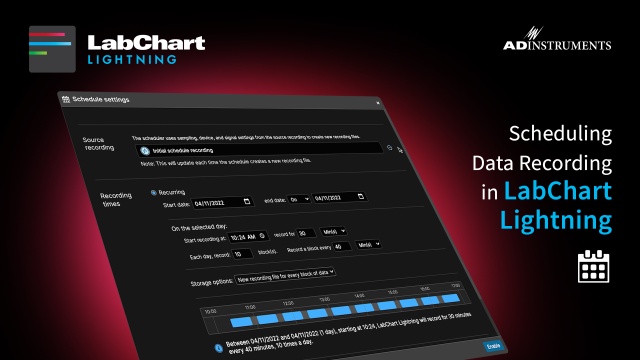
Schedule data recording

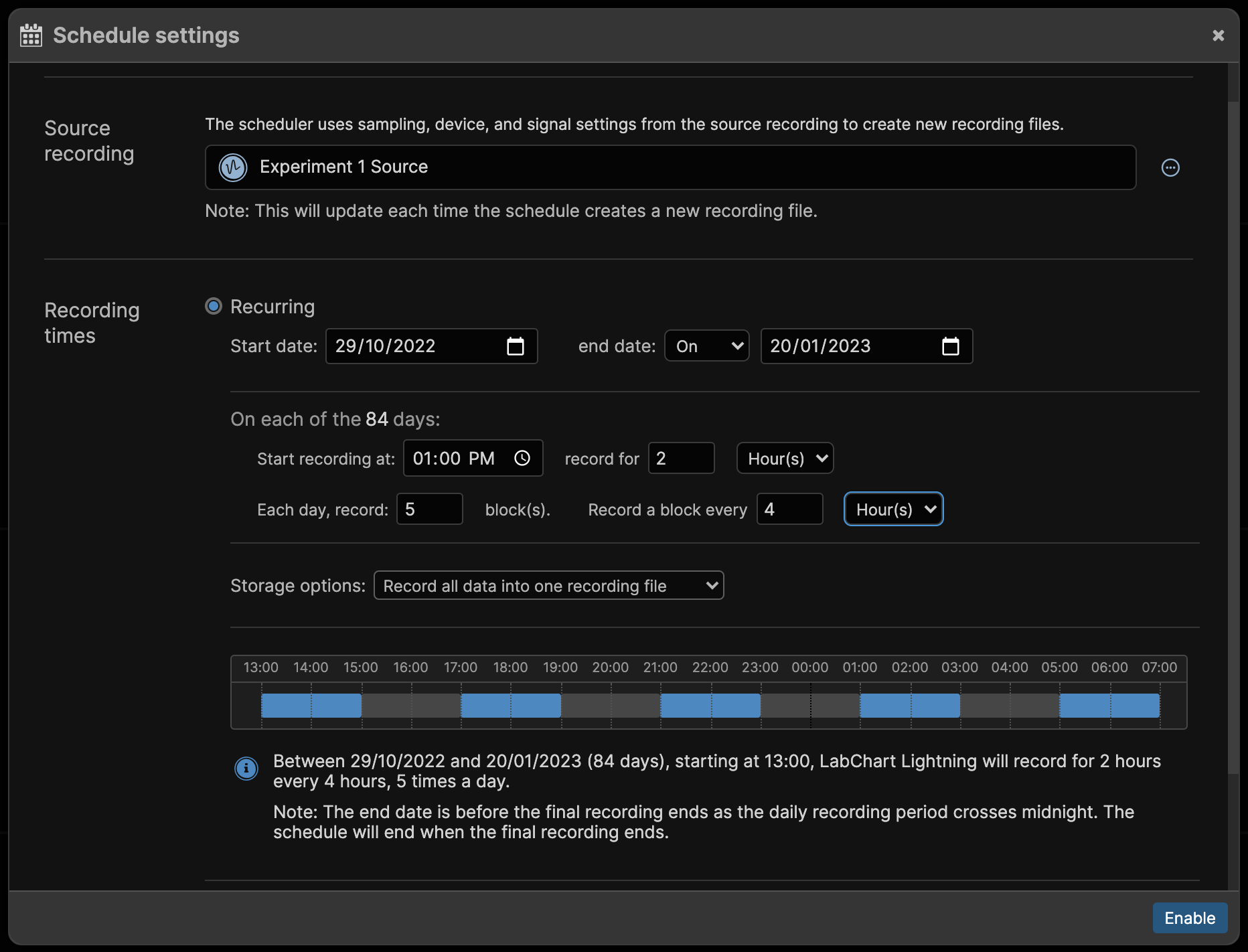
You can now set times to start and stop recording data, for as many days as you like. This is particularly useful for long-running experiments, such as telemetry, or want data at specific times during your experiment.

You are able to:

  • Schedule LabChart Lightning to start and stop recording data automatically, at any time of day.
  • Use a ‘Recurring’ schedule to record data at the same time every day, for as long as you like.
  • Specify your recording settings by choosing a ‘Source recording’.
  • Choose how to save your recorded data.
    • Record all data into one recording file.
    • Create a new recording file for every block of data.
    • Create a new recording file every 24 hours.

Schedule settings

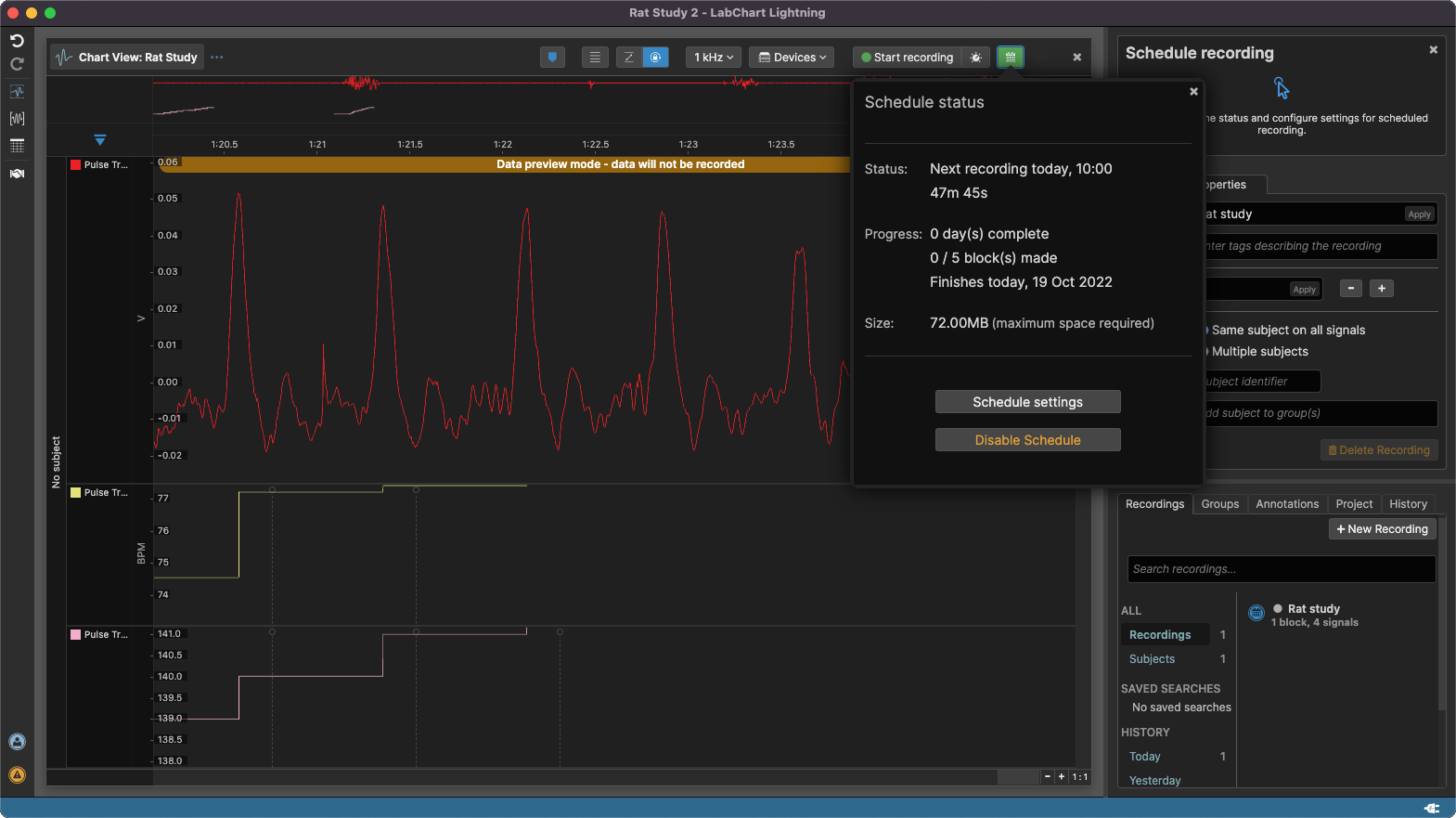
  • See a preview of your data while you are waiting for recording to start. This lets you verify your signals and settings before recording begins.

Data preview

Device Plugin Development Support

  • Plugin writers can now use breakpoints within LabChart Lightning.

Changes

  • Signals with no data in their first block can now calibrate their units.
  • Filtering recordings by time now shows the correct recordings.
  • Projects are more likely to recover from multiple crashes in a row.
  • Custom calculations must now contain at least one connected output signal.
  • Custom calculations can't have two identical outputs.
  • Recordings can't have their creation undone while sampling.
  • The Chart View no longer fails to draw signals recorded in a previous session when scrolling back while sampling.

New Known Issues

  • Human NIBP devices are not fully supported when scheduling data recording. Using the two together will lead to unexpected behavior.

LabChart Lightning 1.9.2

Changes

  • Spirometers and other front-ends are now correctly detected when used plugged into a C Series Front End Interface on particular USB-C ports.

LabChart Lightning 1.9.1

Changes

  • The STH Pump Controller and NIBP Controller Instruments correctly power when plugged into a C Series Front End Interface.
  • Bridge Amp inputs are now detected if connected in parallel with the STH Pump Controller output when using a C Series Front End Interface.